

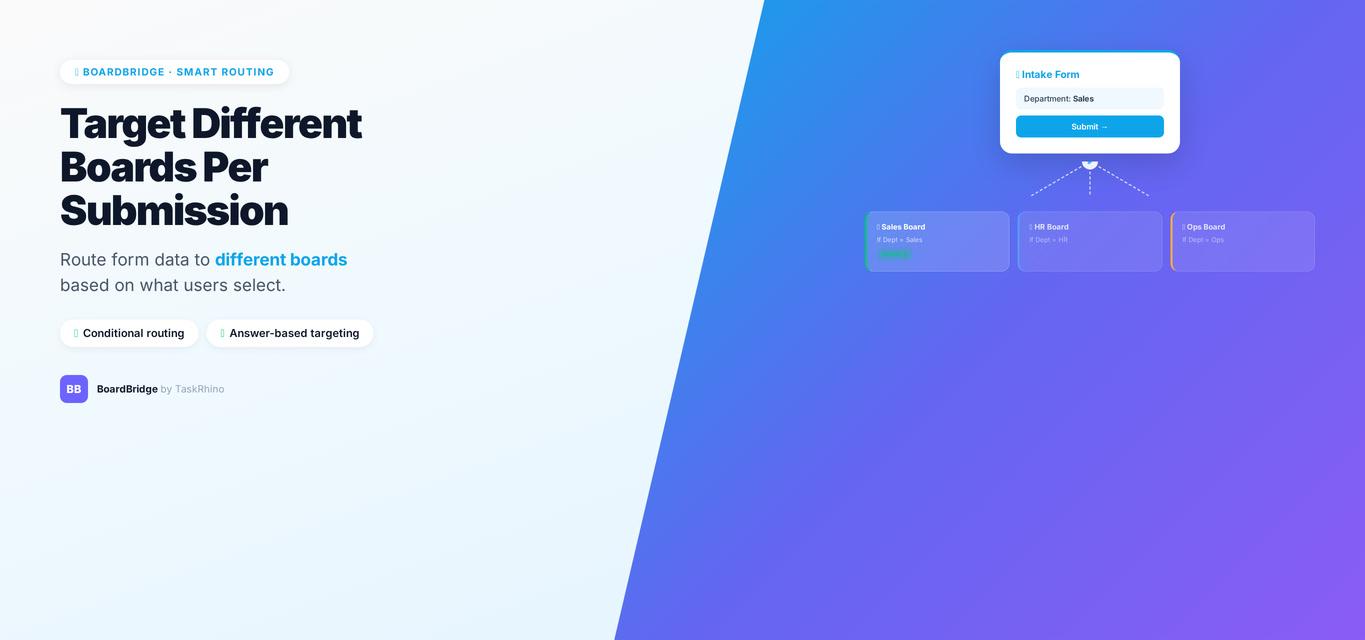
monday.com Form Write to Different Boards — How to Do It
title: “monday.com Form Write to Different Boards — How to Do It” meta_description: “Need one monday.com form to write to multiple boards? Native WorkForms only support one target board. BoardBridge dual-board mapping lets you route different fields to different boards.” keyword: “monday.com form write different boards”
One intake form. Two boards. Zero manual copying.
If you’ve ever needed a single monday.com form to write to different boards at once — like splitting project details between an Overview board and a Production board — you’ve hit one of WorkForms’ most frustrating gaps. Can you write monday.com form data to different boards? Native forms can only target one board. If your data belongs in two places, you’re stuck copying it manually, using third-party middleware like Zapier, or building custom automations that duplicate items and shuffle data around.
Why monday.com Forms Can Only Write to One Board
Pain Point #15: One intake form collects info that belongs on two different boards (e.g., project overview + production details)
WorkForms was designed with a simple assumption: one form submission = one new item on one board. There’s no field-level routing, no “write this field here and that field there” logic. When you publish a form, it points to a single target board, and every field on that form maps to columns on that one board only.
This creates problems in real workflows:
- Event management teams need general event info (client name, date, venue) on an Event Overview board, but production details (A/V requirements, staging notes) on a separate Production board.
- Project intake teams want high-level project data on a Portfolio board and detailed requirements on a Task Tracking board.
- Sales teams need deal information on the CRM board and fulfillment details on an Operations board.
Monday.com’s answer? Use integrations or automations to duplicate the item and copy the data. Which means you’re creating extra items, writing custom logic to merge fields, and dealing with sync delays.
What the Community Says
From the monday.com forums:
“I have a request form that needs to go into 2 different boards.” — Community thread: Can I connect 1 work form to 2 different boards?
“Connected board columns (and people columns, mirror columns, drop-down columns, country columns etc) are not supported in forms.” — Community thread: Support for connected board columns in WorkForms
Users have tried workarounds like creating connected board dropdowns so form submitters could select items from a related board. Not possible natively. The most common workaround is using SuperForm (a third-party monday.com marketplace app) or Make/Zapier (Make: Free/Core $9/Pro $16 — Source, Zapier: Free/Professional $19.99 — Source) for automation middleware.
How BoardBridge Handles monday.com Form Write to Different Boards
BoardBridge — Form & Workflow Automation for monday.com — was built to solve exactly this. Each form field can map to two boards simultaneously: a primary target and a secondary target.
How It Works
When you create a form in BoardBridge, every field has two mapping options:
- Primary board mapping: The main board where the form submission writes. This is required — every form has a primary target board and item.
- Secondary board mapping (optional): A second board where selected fields from the same form also write. You choose which fields go to the secondary board — not all fields have to.
Example: Show Form with dual mapping
- Primary board: Event Overview — receives all 48 form fields (client name, event date, venue, show type, format, logistics notes, etc.)
- Secondary board: Production — receives only the 12 production-related fields (A/V requirements, stage dimensions, load-in time, crew notes, etc.)
When someone submits the form:
- BoardBridge reads all 48 field values from the submission
- It formats the values according to each column type (dates as dates, dropdowns as labels, etc.)
- It writes all 48 fields to the primary board (Event Overview)
- It writes the 12 production fields to the secondary board (Production)
- Both writes happen in parallel — the primary write completes first, the secondary write runs independently
Fault isolation: If the secondary board write fails (maybe the board was deleted, or a column ID changed), the primary submission still succeeds. The failure is logged, but your form submitter sees success and the primary board gets its data.
Field-Level Control
You don’t have to send every field to both boards. For each field, you can configure:
- Primary only: Field writes to the primary board, skips the secondary.
- Primary + Secondary: Field writes to both boards.
- Secondary board ID and column ID: Where on the secondary board this field should write.
This means your client-facing fields (name, email, phone) can stay on the Event Overview board only, while your internal production fields (crew count, load-in instructions) write to both the Event Overview and the Production board.
One Item on Each Board
Unlike monday.com’s Connect Boards column (which WorkForms doesn’t support anyway), this isn’t about linking two items. BoardBridge creates or updates one item on the primary board and one separate item on the secondary board. They’re not connected via monday.com’s relationship structure — they’re independent items that happen to share some data.
If you need them linked, you can:
- Use a shared ID column (like a project number) and populate it on both boards
- Set up a Connect Boards column manually after the items are created
- Use BoardBridge’s cross-board automations to link them based on a matching value
Stop Creating Duplicates
BoardBridge forms update existing items — no Enterprise plan, no workarounds, no duplicates.
Real-World Scenario: Event Intake Form
A client manages live events with three teams: booking, logistics, and production. Each team has its own board. The intake form collects 60+ fields, but not every team needs every field.
Before BoardBridge:
- Form writes to Event Overview board (60 fields)
- Monday.com automation duplicates the item to Production board
- Custom automation copies 15 production fields from Event Overview to Production
- Manual cleanup: delete unnecessary fields from Production board
- Repeat for Logistics board
Result: 3 items created per event, lots of custom automation logic, sync delays between boards.
With BoardBridge:
- Form configured with:
- Primary board: Event Overview (all 60 fields)
- Secondary board #1: Production (15 production fields)
- Future: Secondary board #2 option not yet implemented, but primary + one secondary works now
- Client fills out the form once
- Event Overview gets all 60 fields
- Production board gets the 15 fields it cares about
- No duplicate items, no custom copy logic, no sync delays
Limitation: BoardBridge currently supports one secondary board per form. If you need to write to three or more boards, you’d need to use cross-board automations after the initial submission, or create multiple forms with different secondary mappings.
See How BoardBridge Handles Form Updates
Book a free demo to see BoardBridge solve this exact problem — live, with your data.
Why This Beats Native WorkForms for Multi-Board Form Writes
| Need | monday.com WorkForms | BoardBridge |
|---|---|---|
| Write form submission to 2 boards at once | Not supported — one board only | ✓ Primary + secondary mapping per field |
| Choose which fields go to each board | N/A | ✓ Field-level control |
| Update existing items (not create duplicates) | Enterprise-only, limited | ✓ Every form updates existing items by default |
| Fault tolerance (primary succeeds even if secondary fails) | N/A | ✓ Independent write logic with logging |
| Plan requirement | Any plan (but limited to 1 board) | Any monday.com plan (no Enterprise needed) |
How to Set It Up
- Create your form in BoardBridge with the primary board selected.
- Add your form fields — text, dropdown, date, email, phone, file upload, etc.
- Map primary columns: For each field, select the monday.com column it should write to on the primary board.
- Add secondary mappings (optional): For fields that should also write to a second board:
- Click the field settings
- Add a secondary board ID
- Select the target column on that board
- Publish the form and send the link to your submitters.
When someone fills it out, both boards update automatically. Need help with monday.com workflow customization? TaskRhino offers setup support for complex multi-board workflows.
Common Questions
Q: Can I connect one monday.com form to multiple boards? A: Native WorkForms can’t connect one form to multiple boards — each form writes to only one target board. BoardBridge supports one primary board and one secondary board per form, letting you route different fields to different boards from a single submission.
Q: Can I write to 3+ boards from one form? A: Not yet. BoardBridge supports one primary board and one secondary board per form. For three or more boards, you’d combine this with cross-board automations triggered by the form submission.
Q: Does the secondary board need the same columns as the primary? A: No. You map each field independently. The secondary board can have completely different columns — BoardBridge just needs to know which column ID to write each field to.
Q: What happens if the secondary board is deleted? A: The primary submission still succeeds. The secondary write fails and logs an error in the admin panel, but your form submitter sees “success” and the primary board gets all its data. No submission is blocked by secondary board failures.
Q: Can the same field write to different column types on each board? A: Technically yes, but not recommended. If you map a Date field to a Date column on the primary board and a Text column on the secondary board, the text column will receive a formatted date string. Best practice: use matching column types across boards.
Q: Can you create multiple WorkForms on the same board? A: Yes, you can create multiple WorkForms on the same board and route submissions to different groups. But each individual form still only writes to that one board. To write one form to different boards, you need BoardBridge’s dual-board mapping.
Q: Does this work with form pre-fill? A: Yes. When you send a form link with an item ID, BoardBridge pre-fills fields with data from the primary board only. The secondary board isn’t involved in pre-fill. When the user submits, both boards update.
Q: Is this the same as monday.com’s Connect Boards column? A: No. Connect Boards creates a relational link between items on two boards (Source). However, Connect Boards columns are not supported in WorkForms (Source). BoardBridge dual mapping creates two independent items (or updates two independent items) with shared data. They’re not linked in monday.com’s database. If you need them linked, add a Connect Boards column manually or use a shared ID field.
Q: Can I use conditional logic to decide which secondary board to target? A: Not yet. The secondary board is set at the form level, not dynamically per submission. If you need different forms to target different secondary boards, create multiple forms with different secondary mappings. For advanced monday.com form conditional logic, BoardBridge offers compound AND/OR conditions on all plans.
Q: Does this consume extra monday.com API calls? A: Yes — one API call to write the primary board, one to write the secondary board. But both are standard board update operations, and monday.com’s API limits are generous (rate limits apply at 60+ requests per minute, which is rarely hit in normal form usage).
Who This Is For
This feature is built for teams who:
- Collect intake data that serves multiple departments or workflows
- Want one client-facing form instead of asking people to fill out multiple forms
- Need operational data (like production requirements) separated from high-level project data (like client info)
- Are tired of building custom automations to duplicate and shuffle form data between boards
If your form data naturally lives in two places, BoardBridge handles it natively — no Zapier, no duplicate items, no manual copying.
Need forms that write to multiple monday.com boards? BoardBridge by TaskRhino handles dual-board mapping out of the box. Book a free 30-minute consultation at https://calendly.com/rp-spaceo/call-with-rakesh-est-timezone
Need Help With Your monday.com Setup?
TaskRhino has implemented monday.com for 110+ teams. Get a free consultation.

Editor's Choice
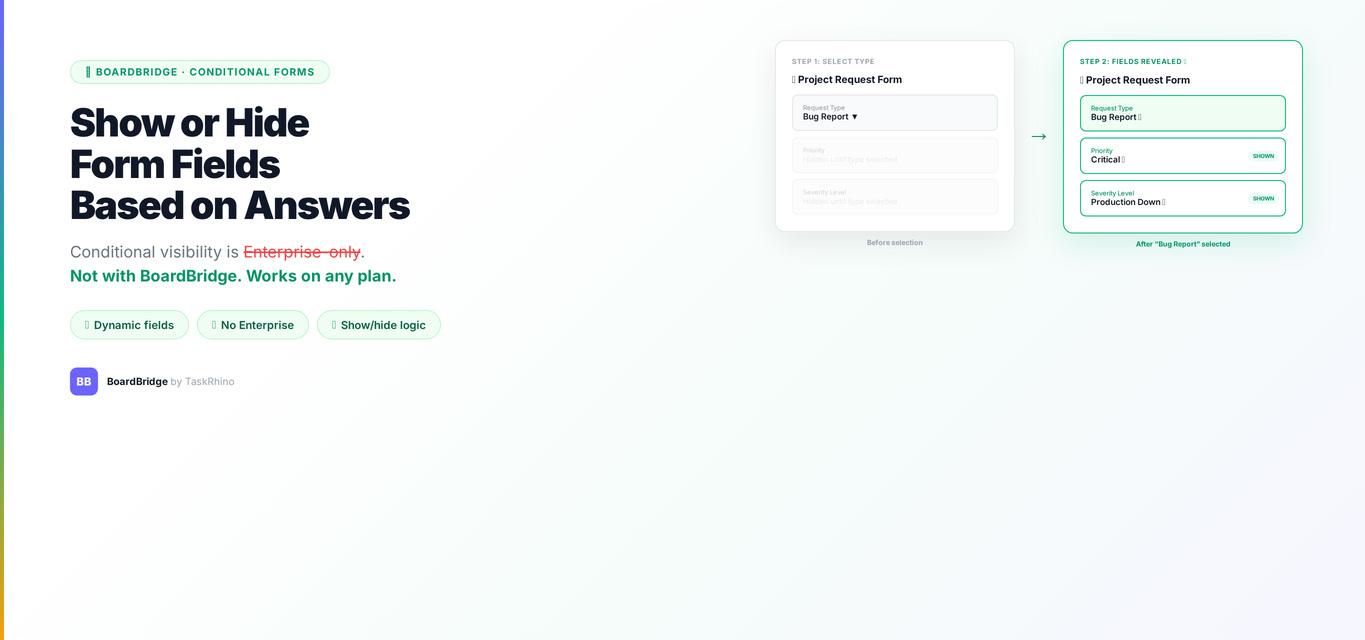
How to Show or Hide monday.com Form Fields Based on Previous Answers

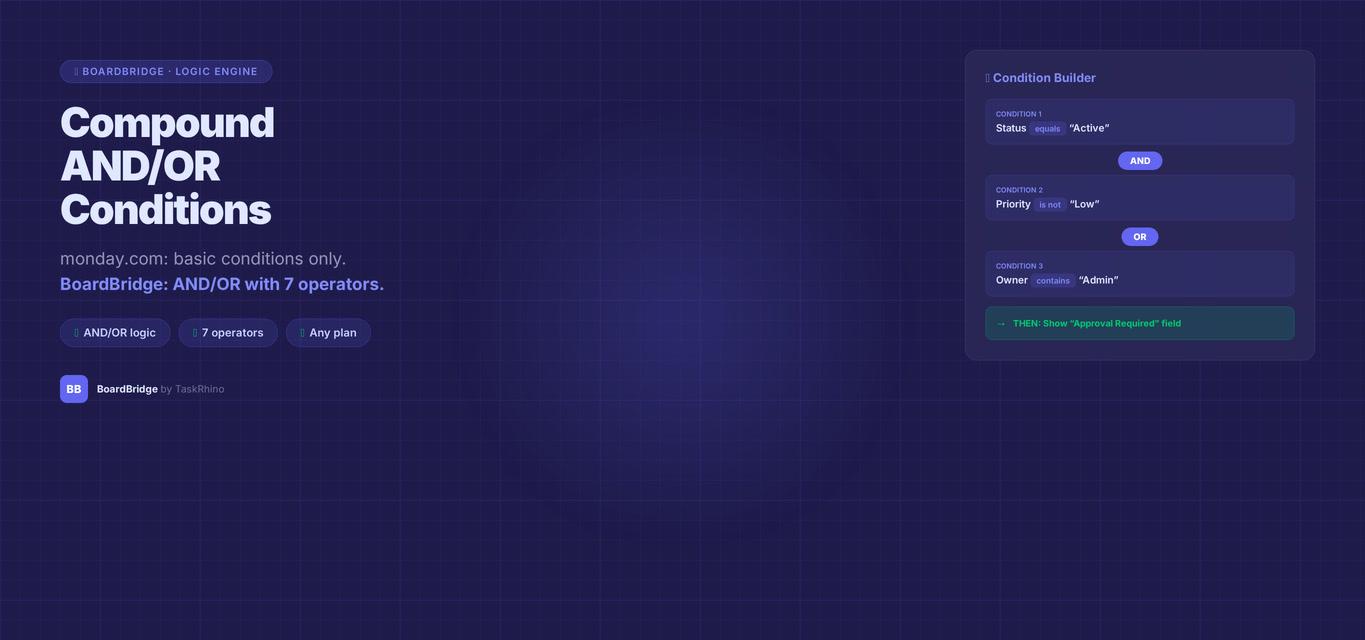
monday.com Form Compound AND/OR Conditions — Multi-Rule Logic
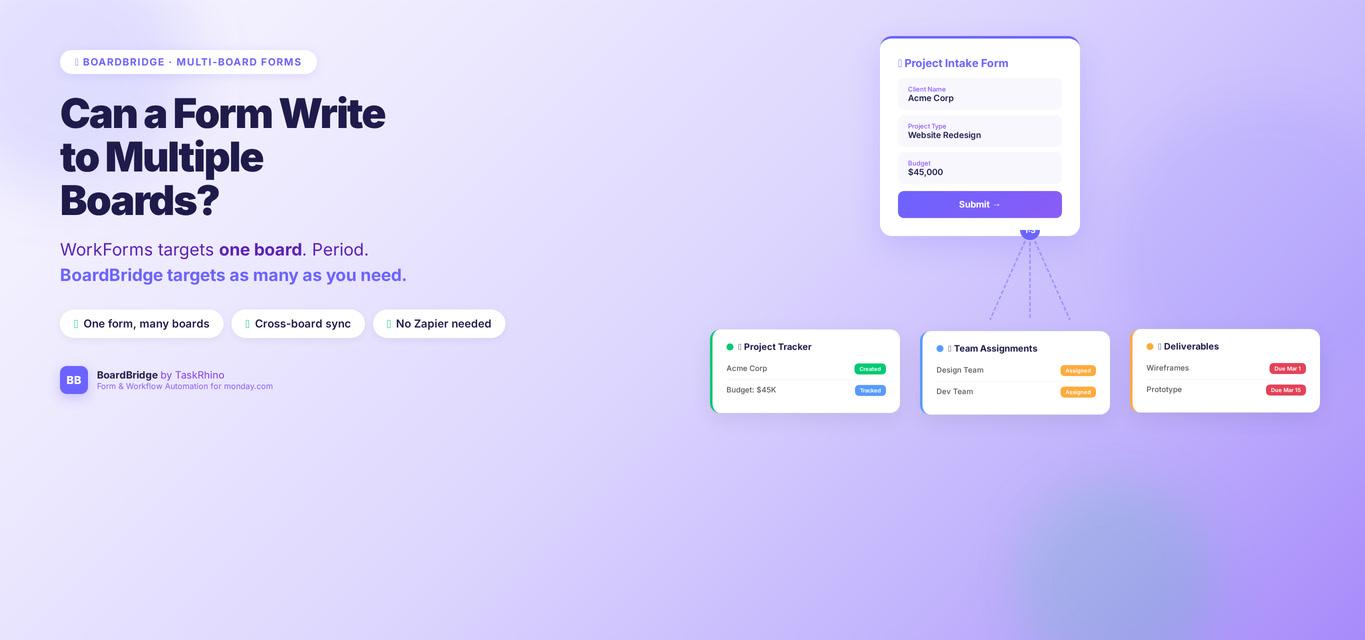
Can a monday.com Form Write to Multiple Boards? WorkForms Cannot — But This Can