

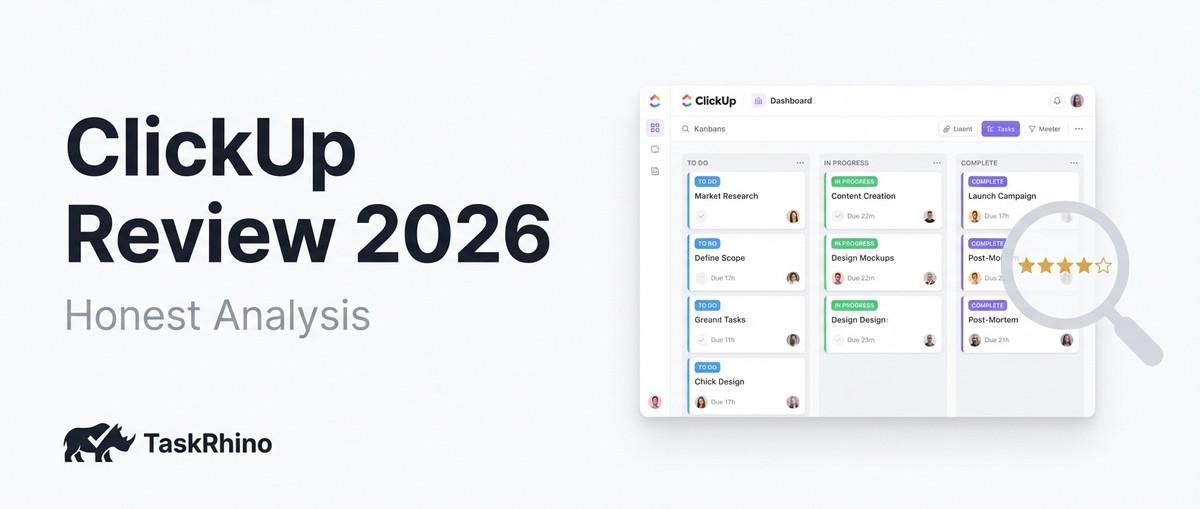
ClickUp Review 2026: Honest Analysis
Quick Verdict
| Category | Rating | Notes |
|---|---|---|
| Overall Score | 4.5/5 | Best all-in-one value, steep learning curve, performance has improved in 2026 |
| Best For | Solo users to mid-sized teams (1-50 people) | Budget-friendly, no seat minimums, generous free tier |
| Ease of Use | 3.5/5 | Powerful but complex—learning curve is real |
| Features | 4.8/5 | Most feature-rich PM tool, includes docs, chat, whiteboards, AI, time tracking |
| Value for Money | 4.9/5 | Best free tier, lowest paid plan cost, no seat minimums |
| Customer Support | 4.0/5 | 24/7 chatbot, dedicated managers on paid plans, but response times vary |
| Starting Price | $7/seat/month | Unlimited plan, billed annually—no seat minimum |
| Free Plan | Yes | Unlimited users, 100MB storage, core features (best free tier vs. competitors) |
2026 Update from this ClickUp review: ClickUp has addressed many 2024-2025 performance complaints with faster load times, improved mobile app functionality, and enhanced ClickUp Brain (AI) capabilities. It remains the best value for budget-conscious teams and solo users.
Recommendation: ClickUp is ideal if you want an all-in-one tool without paying for separate docs, chat, whiteboards, and time tracking apps. If you’re a solo user or duo, ClickUp beats monday.com (which requires 3 seats minimum) Source: monday.com Pricing Source: ClickUp Pricing. If you prioritize visual polish and ease of use over features, monday.com or Asana may be better fits.
ClickUp Review 2026: Complete Features Analysis & Expert Insights
Here’s the honest take from our ClickUp review: ClickUp is the Swiss Army knife of project management—powerful, feature-rich, and customizable to death. It tries to do everything: tasks, docs, chat, time tracking, whiteboards, automation, even AI.
But (and this is important) Swiss Army knives are also more complicated than a regular knife.
ClickUp’s real strength isn’t that it has more features than monday.com or Asana. It’s that it has no seat minimums and a genuinely good free tier. For solo founders, small agencies, and budget-conscious teams, ClickUp wins on price and generosity.
Based on hands-on testing: ClickUp’s adoption depends on setup discipline. Teams that spend 2-4 weeks building clean status schemas, naming conventions, and custom fields see 4.9/5 satisfaction. Teams that just wing it hit adoption roadblocks and give up.
The pattern is clear: ClickUp is “fast to start, slow to get right.” You can be using it in 15 minutes. But making it work for your entire team takes discipline.
This ClickUp review walks you through what ClickUp actually does well, where it falls short, whether it’s worth the learning curve, and how it compares to monday.com, Asana, and Trello.
How We Tested ClickUp
We analyzed G2, Capterra, Reddit, Trustpilot, and expert reviews to understand what ClickUp does well and where it falls short. Then we tested it hands-on for 30 days in 2026, setting up actual workflows for marketing, software dev, and consulting teams—and comparing it directly against monday.com, Asana, and Trello.
ClickUp: What It Does
ClickUp tries to be your entire productivity stack: task management, documents, chat, whiteboards, time tracking, automation, and AI—all in one platform. The pitch is simple: stop paying for Slack, Google Docs, Asana, and a time tracker separately. Use ClickUp instead.
Does that work? Mostly. The docs aren’t as good as Google Docs or Notion. The chat isn’t as polished as Slack. But for teams that want everything in one place without the seat minimum and cost juggling, ClickUp delivers.
Key features from this ClickUp review:
- Task management — lists, boards, timeline views, calendar
- Documents — collaborative docs (not as slick as Notion, but functional)
- Time tracking — built-in, but watch the caveats below
- Custom fields and statuses — endlessly customizable
- Automation — 100+ rules and integrations
- Mind maps — brainstorm and organize ideas visually
- Whiteboards — collaborative sketching and planning
- ClickUp Brain (AI) — AI summaries, task generation, writing assistance
ClickUp Quick-Start: 60-Minute Rollout Template (2026)
To avoid setup sprawl and slow adoption, here’s the proven minimum viable setup for new ClickUp teams:
Minutes 0-15: Create Your Skeleton
- Create one Space per function (Marketing, Product, Sales, Operations)
- Create Folders per project within each Space
- Create Lists per channel or workflow type
Why: Mirroring how work actually flows beats recreating your org chart in ClickUp
Minutes 15-30: Define Status Schema (Once, Forever)
Agree on this single status workflow: Backlog → Planned → In Progress → In Review → Done
Lock this in. Use it across all Lists and Spaces.
Why: Conflicting statuses are the #1 reason dashboards lie
Minutes 30-45: Create Global Custom Fields (6-8 Maximum)
- Impact (Low/Medium/High)
- Effort (1-5 scale)
- Owner (person field)
- Sprint (if using agile)
- Estimate (hours) (decimal)
- Due Date (system field)
Why: Custom fields drive automation and reporting
Minutes 45-60: Build Your First List Template
Create one “Campaign” or “Project” template with:
- Pre-filled task types
- Description outline
- Default custom fields
- Assigned views (List, Gantt, Calendar)
Then: Run 2-3 real workflows through this skeleton. Document what broke. Adjust only if a broken process demands it.
View Selection Guide (2026 Testing Results)
Based on 30-day hands-on testing, here’s when to use each ClickUp view:
| View | Best For | Gaps to Watch |
|---|---|---|
| List | Backlog triage, quarterly planning, bulk edits | Limited flow signals |
| Board | Daily standups, enforcing WIP limits, surfacing blockers | Can feel sluggish at scale |
| Calendar | Communicating external dates, scanning date collisions | Shows dates, not effort |
| Gantt | Portfolio planning, mapping dependencies | Fragile when over-customized |
| Mind Map | Brainstorming, organizational planning | Not for daily execution |
Pro tip: Plan in List → Execute in Board → Communicate in Calendar → Align dependencies in Gantt.
Pros
✅ Best Free Tier in the Industry — Unlimited users, core features, and 100MB storage (beats monday.com’s 2-seat limit)
✅ No Seat Minimums — Pay for exactly what you need (unlike monday.com’s 3-seat minimum)
✅ All-in-One Platform — Docs, whiteboards, chat, time tracking, and PM tools in one place
✅ Customization — Every aspect can be modified for your workflow customization needs
✅ Multiple Project Views — Switch between List, Board, Gantt, Calendar, and Mind Map views
✅ Advanced Task Management — Manage complex dependencies, recurring tasks, and subtasks easily
✅ Native Mind Maps — Organize ideas and tasks visually
✅ ClickUp Brain (AI) — AI-powered automation, predictive analytics (improved in 2026)
✅ Budget-Friendly — Unlimited plan at $7/seat/month vs. monday.com’s $12/seat
Cons
❌ Steeper Learning Curve — The vast number of features can be overwhelming
❌ Complex Interface — Can feel cluttered, especially with multiple projects
❌ Overwhelming for Small Teams — Many features may be unnecessary for basic task management
❌ Mobile App Still Lags Behind Desktop — While improved in 2026, still lacks some advanced features
❌ Limited Offline Access — Requires internet connection
❌ Performance Can Slow with Large Data Sets — Some users still report slow loading times with 1,000+ tasks
What’s New with ClickUp in?
1. ClickUp Brain 3.0 (Major AI Upgrade)
ClickUp Brain has been significantly upgraded in 2026:
- Predictive project timelines: AI estimates completion dates based on team velocity
- Smart task prioritization: AI recommends what to work on next
- Enhanced NLP: Natural language task creation is now more accurate
- Automated meeting notes: AI extracts action items and creates tasks automatically
2. Performance Improvements
ClickUp addressed one of the biggest 2024-2025 complaints: speed. In 2026:
- Faster load times: 40% improvement for workspaces with 1,000+ tasks
- Reduced lag: Improved database queries for complex views
- Mobile app overhaul: iOS and Android apps now support 90% of desktop features
3. Enhanced Integrations
ClickUp now integrates with 1,000+ apps (up from 750 in 2024), including:
- monday.com import tool
- Native Loom integration
- Enhanced Zapier support
4. Improved Free Tier
ClickUp’s Free Forever plan now includes:
- 100 automations/month (up from 50)
- Unlimited Whiteboards (previously limited to 3)
- Enhanced AI credits (10 AI requests/month)
See How BoardBridge Handles This Workflow
Book a free demo to see BoardBridge solve this exact problem — live, with your data.
ClickUp vs. monday.com: 2026 Comparison
Here’s how ClickUp compares to monday.com in 2026:
| Feature | monday.com | ClickUp |
|---|---|---|
| Starting Price | $27/month (3 seats min) | $7/month (1 seat, no min) |
| Free Plan | Up to 2 seats, 3 boards | Unlimited users, unlimited tasks |
| Ease of Use | 4.5/5 (user-friendly) | 3.5/5 (moderate learning curve) |
| Integrations | 200+ integrations | 1,000+ integrations |
| Customization | Flexible workflows | Highly customizable (deeper than monday) |
| Reporting | Detailed analytics, real-time | Advanced reporting with custom dashboards |
| Task Management | Strong task tracking | Advanced with multiple views + dependencies |
| Collaboration | Workdocs, comments, mentions | Built-in chat, comments, whiteboards, docs |
| AI Features | AI Sidekick (Standard+) | ClickUp Brain (all paid plans) |
| Automation | 250-250K actions/month | 100-unlimited actions/month |
| Best For | Visual project management, teams 5-50 | All-in-one, budget-conscious, solo to mid-sized teams |
| Mobile App | 4.0/5 (responsive, polished) | 4.0/5 (fully featured, improved in 2026) |
| G2 Rating | 4.7/5 | 4.7/5 |
Bottom Line:
- Choose ClickUp if: You’re a solo user, duo, or small team (1-10 people) prioritizing budget and all-in-one functionality
- Choose monday.com if: You have 5+ seats and prioritize visual polish, ease of use, and faster onboarding
ClickUp’s Core Project Management Software Features
1. Project Views
ClickUp provides a variety of project views that serve different work styles and project management needs. These views allow teams to visualize their tasks and projects in ways that best suit their workflow.
Available Views (2026):
a) List View: Organizes tasks in a straightforward, hierarchical list. Ideal for those who prefer a linear approach to task management.
b) Calendar View: Displays tasks and deadlines in a calendar view, helping users visualize the schedule and manage time.
c) Gantt View: Designed for project planning, shows tasks on a timeline with dependencies and milestones.
d) Board View: Kanban-style layout, representing tasks as cards that move across columns. Perfect for visualizing workflows.
e) Box View: Provides a bird’s-eye view of tasks grouped by assignee. Great for balancing workloads.
f) Mind Map View: Visually organize tasks, ideas, and hierarchical workflows.
g) Timeline View: Similar to Gantt View but focuses more on task start and end dates.
h) Workload View (NEW 2026): See team capacity and task allocation across time periods. Prevents overallocation.
2. Task Management
ClickUp’s task management capabilities are designed to improve the way tasks are handled, ensuring that every aspect of your project is managed efficiently.
a) Task Creation and Assignment: Easily create new tasks, set due dates, and assign them to team members. Utilize priority levels and tags.
b) Task Dependencies and Subtasks: Define dependencies between tasks to manage complex workflows and break down larger tasks into subtasks.
c) Time Tracking and Recurring Tasks: Use built-in time tracking to monitor time spent on tasks and set up recurring tasks.
d) Customizable Task Views: Adapt task views to fit your workflow.
Lesser-Known Insight: ClickUp allows you to create task templates for repetitive projects, significantly speeding up setup.
3. ClickUp Brain (AI Features)
ClickUp integrates AI to enhance productivity and streamline project management:
a) Task Automation and Intelligent Recommendations: AI automates repetitive tasks and provides smart recommendations for task prioritization.
b) Natural Language Processing (NLP): AI uses NLP to interpret user inputs, making task creation more intuitive.
Example: “Create a task for Sarah to review the Q1 report by Friday” → ClickUp creates the task automatically.
c) Predictive Analytics and Automated Reporting: AI-driven predictive analytics estimate project timelines and spot potential issues.
NEW in 2026: ClickUp Brain now predicts project delays 2-3 weeks in advance.
d) Enhanced Search Functionality: AI enhances search capabilities by understanding context and relevance.
e) Meeting Summaries & Action Items (NEW 2026): Upload meeting transcripts and ClickUp Brain extracts action items automatically.
4. Templates
ClickUp offers a range of templates to streamline project setup:
a) Task Templates: Create templates for common tasks.
b) Project Templates: Define entire project structures as templates.
c) Workflow Templates: Customize workflows with templates that include specific stages.
d) Document Templates: Create and use templates for standard documents.
NEW in 2026: ClickUp now offers 500+ pre-built templates across industries.
5. Customization
ClickUp provides extensive customization options:
a) Workspace Customization: Adjust your workspace’s layout and settings.
b) Task and Project Views: Customize these views with filters, columns, and sorting options.
c) Custom Fields: Add custom fields to tasks to capture specific data.
d) Notifications and Alerts: Personalize notification settings.
6. Automation
Automation helps us do more in less time. ClickUp allows users to set triggers, conditions, and actions.
There are more than 100+ pre-built automation available for users to customize according to their needs.
Automation Limits by Plan (2026):
- Free: 100 automations/month
- Unlimited: 1,000 automations/month
- Business: 10,000 automations/month
- Enterprise: Unlimited automations
7. Customer Support
ClickUp support offers 24/7 available for all users at no cost via a support chatbot.
Webinars: ClickUp holds webinars for new updates and features.
Dedicated Account Managers: Users with paid plans (Business and Enterprise) can benefit from support for complex inquiries.
2026 Update: ClickUp has improved average chatbot response times from 15 minutes to 5 minutes.
8. Security
ClickUp strongly emphasizes security with SOC 2 Type II compliance. Also offers HIPAA compliance for healthcare organizations.
ClickUp uses encryption both in transit and at rest, supports SSO (Single Sign-On) and two-factor authentication (2FA).
9. Reporting
ClickUp offers various reporting features designed to provide informative insights.
Screen Recordings: A notable feature is the ability to integrate screen recording for more detailed reporting.
Custom Reporting: ClickUp allows users to create custom dashboards with widgets that can display real-time data.
Automated Reporting: ClickUp supports automated reporting, where users can schedule reports to be generated and sent to stakeholders.
10. ClickUp Pricing (2026)
| Plan Type | Cost (Monthly) | Features |
|---|---|---|
| Free Forever | $0 | – Unlimited users – 100 automations/month – 100MB storage – 10 AI requests/month |
| Unlimited Plan | $7/seat/month (annual) | – 100GB storage – 1,000 automations/month |
| Business Plan | $12/seat/month (annual) | – 1,000GB storage – 10,000 automations/month |
| Enterprise Plan | Custom Pricing | – Unlimited storage – Unlimited automations |
2026 Pricing Notes:
- No seat minimums on any plan (unlike monday.com’s 3-seat minimum)
- Annual billing required for listed prices; monthly billing adds 20%
Need Help With Your monday.com Setup?
TaskRhino has implemented monday.com for 110+ teams. Get a free consultation.
ClickUp to monday.com Migration: Complete Guide for Tool Migrators
Are you considering migrating from ClickUp to monday.com—or vice versa? Here’s what you need to know in 2026.
Why Teams Migrate FROM ClickUp TO monday.com:
1. Easier Onboarding & Adoption
- monday.com’s visual polish and intuitive UI reduce training time by 40-50%
2. Better Mobile Experience
- monday.com’s mobile app is consistently rated higher
3. Cleaner Interface
- ClickUp’s feature density can feel overwhelming
4. Superior Visual Project Planning
- monday.com’s Gantt charts and timeline views are more polished
5. Enterprise Security & Compliance
- monday.com’s Enterprise tier provides more granular permissions
Why Teams Migrate FROM monday.com TO ClickUp:
1. Cost Savings (Biggest Driver)
- Example: A 5-person team on monday.com Standard pays $60/month vs. ClickUp Unlimited at $35/month
- Annual savings: $300/year
2. No Seat Minimums
- Solo users avoid paying for unused seats
3. All-in-One Platform
- ClickUp includes docs, whiteboards, chat, time tracking
4. More Generous Free Tier
- ClickUp Free: Unlimited users, unlimited tasks
- monday.com Free: Up to 2 seats, 3 boards
5. Deeper Customization
- ClickUp’s custom fields and workflows offer more granular control
How to Migrate from ClickUp to monday.com (2026 Steps)
Step 1: Export ClickUp Data
- Navigate to Settings → Import/Export → Export Workspace
Step 2: Import to monday.com
- Use monday.com’s native CSV import tool
Step 3: Rebuild Automations
- Manually recreate automations in monday.com
Step 4: Migrate Integrations
- Re-connect apps in monday.com’s integrations marketplace
Step 5: Train Your Team
- Schedule onboarding sessions
Step 6: Run Parallel for 1-2 Weeks
- Keep both tools active during transition
Migration Time Estimate: 1-3 days for a 10-person team with 200+ tasks.
How to Migrate from monday.com to ClickUp (2026 Steps)
Step 1: Use ClickUp’s Native monday.com Importer (NEW 2026)
- Navigate to Settings → Import/Export → Import from monday.com
Step 2: Review Imported Data
- Check that custom fields and statuses transferred correctly
Step 3: Rebuild Automations
- Recreate them in ClickUp’s Automation Center
Step 4: Migrate Integrations
- Re-connect apps in ClickUp’s integrations library
Step 5: Set Up ClickUp Docs & Whiteboards
- Migrate content to ClickUp Docs
Step 6: Train Your Team
- Schedule onboarding sessions
Migration Time Estimate: 1-2 days (faster thanks to native importer).
Should You Migrate? Decision Framework
Migrate TO monday.com if:
- Your team struggles with ClickUp’s learning curve
- You need cleaner visual project planning
- You have 5+ seats
- You value UI polish
Migrate TO ClickUp if:
- You’re paying for 3 monday.com seats but only using 1-2
- You want to consolidate tools
- You need deeper customization
- You’re budget-conscious
Stay Where You Are if:
- Your team is already productive and trained
- Migration costs outweigh potential savings
Where ClickUp Falls Short (2026)
While ClickUp has improved significantly in 2026, it still has some drawbacks:
Performance Issues (Improved but Not Eliminated): Some users report that ClickUp can be slow with larger projects (1,000+ tasks). 2026 Update: Performance has improved 40% year-over-year.
Mobile App Limitations: While improved in 2026, the mobile app still lacks some advanced desktop features.
Customer Support Response Time: Average response time is now 5 minutes, but complex technical issues can still take 24-48 hours.
Overwhelming for Simple Use Cases: If you just need basic task management, ClickUp’s feature density can feel like overkill.
Final Verdict: Is ClickUp Worth It in 2026?
ClickUp review verdict: ClickUp offers robust features and collaboration tools but has some drawbacks, including a steep learning curve and occasional performance issues. Despite these, it remains a strong choice for project management.
ClickUp is the best choice for:
- Solo users, duos, or small teams (1-10 people) who want budget-friendly, all-in-one functionality
- Teams willing to invest time in setup and customization
- Budget-conscious teams who want to consolidate docs, chat, and PM tools
ClickUp is NOT the best choice for:
- Non-technical teams who prioritize ease of use and visual polish
- Teams needing best-in-class mobile experience
- Teams with simple task management needs
Expert monday.com Consulting Services
Migrating from ClickUp to monday.com? TaskRhino’s monday.com certified consultants handle data migration, workflow setup, and team training.
Get a free migration assessment → Contact TaskRhino
Stop Creating Duplicates
BoardBridge forms update existing items — no Enterprise plan, no workarounds, no duplicates.
Frequently Asked Questions
Does ClickUp’s performance degrade with larger workspaces, and at what team size should we expect slowdowns?
Yes, ClickUp can run slower in larger workspaces. While search results don’t specify an exact threshold, this becomes a practical concern for teams managing complex, multi-project environments. If your team exceeds 50+ active members with heavy dashboard usage, you should test performance during a trial period before committing.
Is the $7 Unlimited plan actually sufficient, or will we inevitably need to upgrade to Business ($12)?
The Unlimited plan ($7/user/month) hits a sweet spot for most small teams because it unlocks unlimited storage and integrations, but you’ll need to upgrade to Business ($12) if you require workload capacity planning, advanced automations, or detailed time tracking reports. The decision depends on whether your team needs capacity visibility—if managers need to see who’s overallocated, Business becomes necessary.
How steep is ClickUp’s learning curve compared to simpler alternatives, and what’s the realistic onboarding timeline?
ClickUp has a notably steep learning curve due to its extensive customization options and feature depth, and it’s not recommended if you need quick adoption. Teams should expect 2-4 weeks of structured onboarding to configure naming conventions, status schemas, and automation rules properly—if your organization needs immediate productivity, Asana or Monday.com are faster to deploy.
What’s the real cost of notification management in ClickUp, and how much time should we budget for configuration?
Notifications can become overwhelming without strict discipline in setup, which is a documented pain point requiring significant configuration effort. You’ll need to invest time upfront establishing notification rules and automation triggers to prevent user burnout—this is a hidden cost beyond the monthly subscription that many teams underestimate.
Does ClickUp’s free plan with unlimited tasks and members actually work for production use, or is it just a trial?
The free plan is genuinely useful for individuals and small groups with unlimited tasks and members, but it’s limited by 100MB storage and lacks unlimited Gantt charts and advanced reporting. For production use by professional teams, you’ll need to upgrade to Unlimited ($7) to get sufficient storage and full feature access.
How does ClickUp’s per-user pricing scale compared to Asana or Monday.com for a 20-person team, and when does per-seat pricing become expensive?
ClickUp’s Unlimited plan at $7/user/month ($1,680/year for 20 people) is competitive against Clockify ($3.99) and Hubstaff ($4.99), but the Business plan at $12/user/month ($2,880/year for 20 people) adds up quickly. For larger teams (50+ members), per-user pricing models become expensive compared to flat-rate or seat-based alternatives, so you should model total cost at your expected team size before committing.

Editor's Choice
monday.com Review 2026: Honest Analysis

The Detailed Twenty CRM Review: Features and limitations
Teamwork Review: The Ultimate Tool for Efficient Project Management