

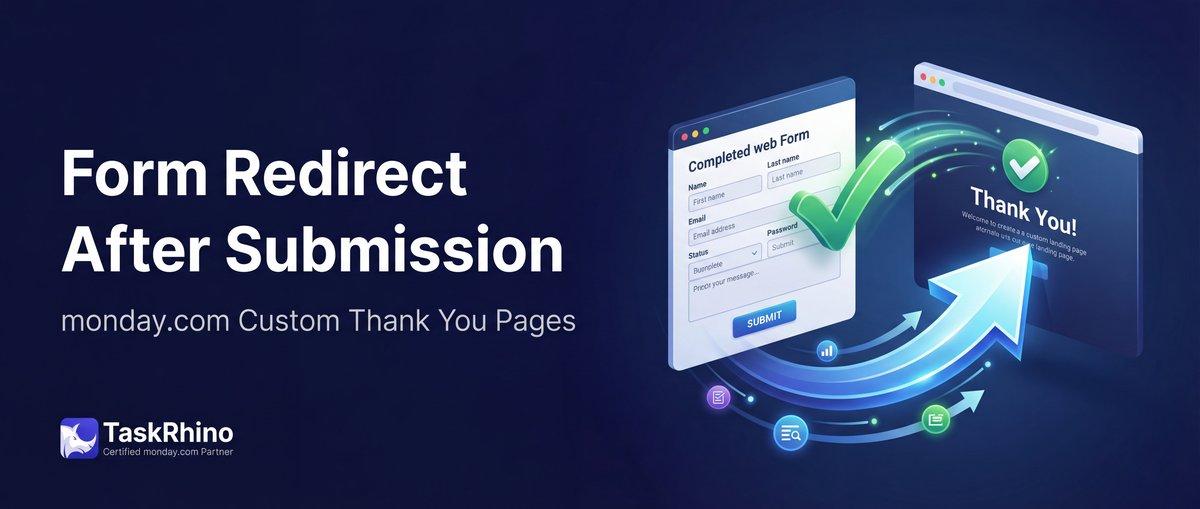
monday.com Form Redirect After Submission: How to Send Users to Calendly, Thank-You Pages, or Custom URLs
Forms Pain Point #6: Custom redirect URL after form submission
You’ve built a monday.com form. Someone fills it out, hits submit, and you want them to land on your Calendly booking page, a custom thank-you page, or a payment portal — not stuck on a generic success screen.
Good news: monday.com WorkForms DOES support custom redirect URLs Source. You can send form submitters to any web address after they submit.
The limitation isn’t whether monday.com supports redirects (it does) — it’s what kind of redirects you need. This post covers how monday.com’s redirect feature works, what it doesn’t do, and when you might need something more advanced.
Quick navigation:
- How monday.com WorkForms Redirects Actually Work
- How to Set Up a Redirect in WorkForms
- What WorkForms Redirects Can’t Do
- When You Need More Than Basic Redirects
- How BoardBridge Handles Redirects
How monday.com WorkForms Redirects Actually Work
Monday.com WorkForms includes a “Redirect URL” setting in form configuration Source. When enabled:
- User submits the form
- Success message appears briefly
- User is automatically redirected to your specified URL
According to monday.com’s official documentation:
“To do so, toggle on the ‘Redirect URL’ setting and input the URL of the webpage you would like to redirect the submitter to. Then click the ‘Set URL’ button.” — WorkForms settings and permissions
This works for:
- Redirecting to Calendly or other booking tools
- Sending users to a thank-you page on your website
- Directing to a payment portal
- Landing on a follow-up survey
- Any static URL you specify
How to Set Up a Redirect in WorkForms
Here’s the step-by-step process in monday.com WorkForms:
Step 1: Open your form’s Settings While editing your WorkForm, click the Settings button at the top of the form builder.
Step 2: Find the Redirect URL option In the General settings section, locate the “Redirect URL” toggle.
Step 3: Enable and configure
- Toggle the “Redirect URL” setting ON
- Enter the full URL you want to redirect to (e.g.,
https://calendly.com/yourcompany/consultation) - Click “Set URL” Source
Step 4: Test your form Use the form preview or submit a test response to confirm:
- The success message appears
- The redirect triggers after a brief delay
- You land on the correct destination URL
That’s it. No code, no third-party tools, no workarounds needed.
Stop Creating Duplicates
BoardBridge forms update existing items — no Enterprise plan, no workarounds, no duplicates.
What WorkForms Redirects Can’t Do
While monday.com supports basic redirects, there are limitations:
1. One Static URL Per Form
You can only set one redirect URL per form. Everyone who submits gets sent to the same destination, regardless of their answers.
What you can’t do:
- Redirect VIP clients to one page and regular clients to another
- Send “Enterprise” tier respondents to enterprise pricing and “Starter” respondents to starter pricing
- Route support requests to different help pages based on the issue category selected
Workaround: Create separate forms with different redirect URLs for each audience segment. But this means multiple form links to manage and distribute.
2. No Passing Form Data in the URL
monday.com redirects send users to the URL you specify — but they don’t pass along any form data as URL parameters.
What you can’t do:
- Redirect to
https://yoursite.com/thank-you?name=John&project=Website - Pre-fill fields on the destination page with data from the form submission
- Track which specific form submission led to a conversion using URL parameters
What this limits: Personalized thank-you pages, pre-filled follow-up forms, detailed conversion tracking beyond basic page visit analytics.
3. No Configurable Delay
The redirect happens after monday.com’s default success message displays. You can’t control:
- How long the success message shows before redirecting (instant vs. 2 seconds vs. 5 seconds)
- Whether to skip the success message entirely
- Custom messaging during the redirect
Impact: Limited control over user experience timing.
4. Redirect Works Only for Successful Submissions
If the form submission fails (network error, monday.com API issue, validation problem), no redirect occurs. The user sees an error message and stays on the form page.
What’s missing: Error-state redirects or retry logic that still guides users to a next step even if submission fails.
See How BoardBridge Handles Form Updates
Book a free demo to see BoardBridge solve this exact problem — live, with your data.
When You Need More Than Basic Redirects
monday.com’s redirect feature handles the most common use case: send everyone to the same URL after they submit. That covers:
✅ Client intake form → Calendly booking link ✅ Event registration → thank-you page ✅ Lead capture → resource download page ✅ Survey completion → company homepage
But you’ll need a more advanced solution if:
- ❌ Different form answers should trigger different redirects (conditional routing)
- ❌ You need to pass form data to the destination URL as parameters
- ❌ You want to control redirect timing (instant, 2 seconds, 5 seconds, skip)
- ❌ You need to update existing monday.com items instead of creating new ones
How BoardBridge Handles Redirects
BoardBridge — Form & Workflow Automation for monday.com — includes the same basic redirect functionality as WorkForms, with a key difference: every BoardBridge form updates existing monday.com items instead of creating new ones.
Current Redirect Features (Available Today)
- ✅ Custom redirect URL — Set any destination URL per form
- ✅ Configurable delay — Choose 0 seconds (instant), 2 seconds (default), or 5 seconds
- ✅ Form preview with redirect testing — Test the full submission flow before sending to users
- ✅ Redirect logging — Every submission logs whether the redirect fired and what URL was used
How it works:
- Configure your redirect URL in the BoardBridge form settings
- Set your preferred delay (default 2 seconds)
- When someone submits, they see “Submitted successfully!” for 2 seconds
- Then they’re automatically redirected to your specified URL
Roadmap Features (Coming 2026)
⏳ Conditional redirects (Q2 2026) — Different URLs based on form answers ⏳ URL parameter passing (Q3 2026) — Pass form data to destination URL as query parameters
For now, BoardBridge handles the core redirect use case — plus the critical feature WorkForms doesn’t offer: forms that update existing items instead of creating duplicates.
Redirect Comparison: WorkForms vs. Competitors
| Feature | monday.com WorkForms | BoardBridge | Fillout |
|---|---|---|---|
| Custom redirect URL | ✅ Yes | ✅ Yes | ✅ Yes |
| Conditional redirects | ❌ No | ⏳ Roadmap | ✅ Yes |
| Pass form data in URL | ❌ No | ⏳ Roadmap | ✅ Yes |
| Configurable delay | ❌ No | ✅ Yes | ✅ Yes |
| Update existing items | ❌ No | ✅ Yes | ✅ Yes |
Bottom line: If all you need is a simple redirect to one URL, monday.com WorkForms has you covered. If you need conditional logic, URL parameters, or (most importantly) the ability to update existing monday.com items with your forms, you’ll need a third-party tool.
Real-World Example: Event Registration → Calendly Booking
A client runs 40–80 events per year. Their workflow:
- Event confirmed → monday.com item created on Event Overview board
- Client receives email with event intake form (unique URL tied to their monday.com item via BoardBridge)
- Client fills out the form (48 questions covering event logistics, A/V needs, travel, catering)
- Form submits → monday.com item updates with all responses (no duplicate rows created)
- Redirect fires → client lands on Calendly to book their planning call
Why they couldn’t use WorkForms redirect: WorkForms creates a new item every time someone submits. For 80 events with multiple form submissions per event (show form, teebox form, production form), they’d have hundreds of duplicate rows to reconcile manually. The redirect feature didn’t matter if the core form behavior didn’t work.
With BoardBridge: Forms update the existing event item. Redirect sends clients straight to Calendly. Booking rate: ~85%. No duplicates, no manual cleanup, no friction.
Need Help With Your monday.com Setup?
TaskRhino has implemented monday.com for 110+ teams. Get a free consultation.
Frequently Asked Questions
How do I set up a custom redirect URL in monday.com WorkForms to send users to Calendly after submission?
In the WorkForm builder, click Settings, then toggle on ‘Redirect URL’ in the General settings section and input your Calendly link before clicking ‘Set URL’. The redirect occurs after the default success message displays, providing a seamless handoff to booking. Note that this sends all users to the same URL; for dynamic redirects based on form data, consider BoardBridge which handles conditional routing.
Why doesn’t monday.com form redirect work on submission failure, and what’s a workaround?
monday.com WorkForms only redirects on successful submissions; errors like network issues or validation failures keep users on the form page with no redirect. BoardBridge overcomes this by implementing error-state redirects and retry logic, ensuring users reach your thank-you or Calendly page regardless.
Can I make monday.com form submissions redirect to unique URLs per response, like a personalized thank-you page?
Native WorkForms supports only a single static redirect URL for all submissions, shown after the success screen. For dynamic per-submission links or personalized redirects, enable ‘Response Viewing’ to generate unique submission links, or use BoardBridge for advanced conditional redirects based on form inputs.
How to track monday.com form submissions as conversions in Google Analytics using redirect?
Set your WorkForm redirect to a dedicated thank-you page on your site, then configure that page visit as a conversion event in Google Analytics. This leverages the redirect to fire tracking pixels reliably after successful submissions, bypassing direct form event limitations.
What’s the issue with redirect pop-ups in monday.com forms for multi-submission workflows like patient surveys?
Recent changes cause a non-customizable redirect notice pop-up that disrupts auto-reload; workaround by disabling redirect, enabling ‘Allow multiple submissions’, and customizing the post-submit message. BoardBridge provides better control over multi-submission flows with customizable buttons and seamless redirects without pop-ups.
How to redirect users to a waitlist after a monday.com form submission limit is reached?
WorkForms allows submission limits with a custom message but no post-limit redirect; it supports redirects only on successful submissions before the limit. For waitlist capture with dedicated redirects or buttons funneling to a separate board group, BoardBridge automates this with conditional logic and dynamic URLs.
How do I configure a conditional redirect in monday.com WorkForms to send different users to Calendly or a thank-you page based on form responses?
monday.com WorkForms supports only a single static redirect URL for all submissions, configured in Settings > General > Redirect URL toggle, which sends everyone to the same destination after a brief success message. For conditional logic like routing to Calendly based on responses, use **BoardBridge** to trigger automations that generate personalized URLs or emails post-submission. This overcomes the native limitation while integrating seamlessly with your board data.
Why is my monday.com form showing a redirect pop-up instead of directly going to my custom Calendly URL, and how to fix it?
Recent platform changes can trigger a non-customizable redirect notice pop-up before navigation, especially in multi-submission setups, as reported in community discussions. Disable ‘Allow multiple submissions’ or test without it; if persistent, **BoardBridge** provides advanced post-submission workflows to bypass pop-ups and enforce direct redirects via custom automations. Always preview and test the form to verify behavior.
Can monday.com WorkForms redirect to dynamic URLs like a payment portal personalized with form data, or only static links?
Native WorkForms redirects are limited to one static URL for all submitters, entered via Settings > Redirect URL > Set URL, unsuitable for dynamic needs like personalized payment links. **BoardBridge** solves this by capturing form data and instantly generating dynamic URLs (e.g., appending email or name parameters) for immediate redirection or follow-up emails. This enables seamless integration with tools like Stripe or custom portals.
How to track form submissions as conversions in Google Analytics when using monday.com redirect to a thank-you page?
Set the redirect URL in WorkForms to your tracking-enabled thank-you page; every submission will hit that page, firing GA conversion events based on visits. Ensure UTM parameters are preserved by using full HTTPS URLs, and verify in GA real-time reports after testing. For advanced tracking with conditional redirects, **BoardBridge** automations can append custom UTM tags dynamically from form inputs.
What happens to the submission link or edit option when I enable redirect URL in monday.com forms?
Enabling redirect doesn’t disable the ‘View your submission’ link or edit functionality; users see a brief success screen with the link before redirecting, and can still access edits via email or column links. If hiding success elements, toggle options under Thank You screen settings, but test to avoid workflow disruptions. **BoardBridge** enhances this by automating secure, personalized edit links post-redirect.
How to reload the form automatically for multiple submissions without the redirect pop-up or full page reload issue after updates?
Post-update, the auto-reload checkbox is gone; use ‘Allow multiple submissions’ for a ‘Submit another’ button, but it may cause full reloads instead of in-widget refresh, as noted in forums. Remove redirect URL temporarily for kiosk-like flows, customizing the success message above the button. For robust multi-submission with clean redirects, **BoardBridge** automations handle sequential entries and targeted post-submission routing.
How do I set up a custom redirect URL in monday.com WorkForms to send users to Calendly after form submission?
In the WorkForm editor, click Settings, navigate to General settings, toggle on ‘Redirect URL’, enter the full Calendly URL (e.g., https://calendly.com/yourcompany/consultation), and click ‘Set URL’. After submission, a brief success message displays before automatically redirecting the user. Test in preview mode to confirm the redirect works without issues.
Why does my monday.com form show a redirect notice pop-up instead of directly going to my thank-you page?
Recent platform changes can trigger a redirect notice pop-up on some setups, especially with multiple submissions or tablets, which cannot be customized. As a workaround, disable the URL redirect and enable ‘Allow multiple submissions’ to show a customizable ‘Submit another form’ button instead. For advanced control over post-submission flows including pop-ups, consider BoardBridge for seamless custom redirects.
Can monday.com WorkForms redirect users to different URLs based on form responses, like conditional Calendly links?
Native WorkForms only supports a single static redirect URL for all submissions, without conditional logic for dynamic redirects. A brief success screen always appears before redirecting, limiting advanced personalization. BoardBridge extends this by enabling conditional redirects based on form data, such as sending high-value leads to premium Calendly slots.
How can I track form submissions as Google Analytics conversions using WorkForms redirect to a thank-you page?
Set the redirect URL to a dedicated thank-you page on your site; every form submission will direct users there, registering as a conversion event in Google Analytics. Ensure the thank-you page has unique tracking parameters or UTM tags from the form URL for accurate attribution. BoardBridge enhances this with built-in analytics integration for deeper submission insights beyond basic redirects.
What happened to the auto-reload form option after submission in monday.com WorkForms, and how to redirect for multiple entries?
The automatic form reload checkbox was removed in recent updates; now using ‘Submit another’ with redirect sends users to a full page reload instead of staying in-widget. Enable ‘Allow multiple submissions’ and customize the thank-you message for a smoother multi-entry workflow without redirects. For persistent in-widget reloading or advanced multi-submission logic, BoardBridge provides customizable post-submission behaviors.
Does monday.com WorkForms support redirecting to payment portals or dynamic URLs after form submission?
Yes, enter any static HTTPS URL like a Stripe payment portal in the Redirect URL setting under General settings for immediate post-submission redirection. Dynamic or conditional URLs based on responses aren’t natively supported, always showing a brief success message first. BoardBridge overcomes this limitation with dynamic URL generation and payment gateway integrations for personalized funnels.

Editor's Choice
monday.com Automation Safety: Preventing Duplicate Items


monday.com No Dry-Run Mode for Automations

monday.com Automation Test Sandbox Mode