

The Ultimate List of Project Management Software for Individual Users
Solo project managers and freelancers face a unique challenge: you need the organizational power of enterprise PM tools without the price tag or complexity that comes with them. After implementing project management systems for 110+ clients — from solo consultants to 50-person agencies — I’ve seen what works when you’re managing everything yourself.
The right tool keeps client work organized, tracks your time, and gives clients visibility without giving them access to your entire workspace. The wrong tool becomes another task on your already-full plate.
This guide breaks down the top 7 project management tools built for individuals and freelancers in 2026. These aren’t scaled-down enterprise platforms — they’re purpose-built for solo operators who need real project management capabilities without the overhead.
What Makes PM Software Work for Solo Users
Before diving into specific tools, here’s what actually matters when you’re managing projects alone.
The Three Things That Make or Break Solo PM Tools
1. Free or affordable tier that doesn’t cripple core features
Most “free plans” are just lead generation tactics. Look for tools where the free tier handles real work — unlimited projects, multiple views, and core automation. I’ve watched freelancers waste entire afternoons managing the tool instead of their actual projects because they hit an artificial limit.
2. Quick setup with minimal maintenance
When you’re billing hourly, every minute spent configuring your PM tool is a minute you’re not billing. The best solo tools work out of the box. Set up a project in under 5 minutes, add tasks, and start working. Complex setup is fine for enterprises with dedicated admins — it’s a dealbreaker for freelancers.
3. Client visibility without client access
You need to show clients progress without giving them login credentials to a workspace where they can see your other clients’ projects. Look for tools with shareable views, client portals, or public project links that give visibility without opening security holes.
What Doesn’t Matter (But Everyone Thinks It Does)
Advanced reporting dashboards — Most freelancers don’t need 12 different chart types. You need to know what’s overdue, what’s next, and where you spent your time. That’s it.
Team collaboration features — If you’re solo, you don’t need @mentions, team workload views, or resource allocation charts. These features look impressive in demos but add interface clutter.
Enterprise integrations — Unless you’re regularly connecting to Salesforce or SAP, integration count is a vanity metric. Focus on integrations you’ll actually use — calendar, email, time tracking, invoicing.
The 7 Best PM Tools for Individual Users & Freelancers
Here’s what works in 2026, based on actual freelancer usage patterns and project complexity.
1. ClickUp — Best for Freelancers Managing Complex Projects
ClickUp is what happens when a team builds a project management tool and refuses to compromise. It’s powerful, packed with features, and has a genuinely useful free plan.
Why Freelancers Pick ClickUp
The free plan gives you unlimited tasks and projects — not “up to 5 projects” like most competitors. You get Gantt charts, workload views, and time tracking without paying a dollar. The catch? The interface can feel overwhelming at first. But once you set it up, it handles everything from simple to-do lists to multi-phase client projects.
What sets ClickUp apart is flexibility. Every task can be viewed as a list item, a Kanban card, a timeline entry, or a calendar event. Switch views based on what you’re working on. Planning a website redesign? Use the timeline. Managing ongoing support requests? Kanban board. Tracking billable hours? Time view.
What You Get
| Feature | Free Plan | Unlimited ($7/month) |
|---|---|---|
| Projects (Spaces) | 5 | ✅ Unlimited |
| Storage | 100 MB | ✅ Unlimited |
| Gantt Charts | ✅ Limited | ✅ Full |
| Time Tracking | ✅ Yes | ✅ + Reporting |
Real ClickUp Freelancer Setup
A web developer I worked with uses ClickUp to manage 8 active clients simultaneously. Each client gets a Space with three Lists: Active Projects, Maintenance Requests, and Completed. Every task tracks time, shows progress with custom statuses (Scoping → Development → Client Review → Live), and links to related tasks using dependencies.
Client review requests trigger an automation that moves the task to “Pending Review” and sends him a Slack notification. When he marks it complete, another automation logs the time to a master spreadsheet for invoicing. Setup took 90 minutes — saving him 5+ hours a month in manual tracking.
ClickUp’s Sharp Edges
The mobile app lags behind the desktop experience. Adding tasks is fine, but complex work — rearranging priorities, bulk editing, creating automations — frustrates on mobile. Plan to do serious project work on desktop.
The automation builder is powerful but not intuitive. Simple automations (task complete → change status) are easy. Compound conditions and multi-step workflows require trial and error.
Pricing Snapshot
| Plan | Price | Best For |
|---|---|---|
| Free Forever | $0 | Solo with <5 active projects |
| Unlimited | $7/user/month | Growing freelancer portfolio |
| Business | $12/user/month | Agency-level automation needs |
Try ClickUp if: You juggle multiple complex projects and need different ways to visualize work depending on the project phase.
Skip it if: You want something simple you can learn in 10 minutes. ClickUp rewards investment but demands initial setup time.
Book a free 30-minute consultation to see how we’ve set up ClickUp for 20+ freelancers across industries.
2. Notion — Best for Freelancers Who Think in Documents
Notion isn’t technically a PM tool — it’s a workspace that happens to do project management really well. If your brain works in outlines, databases, and interconnected notes, Notion feels natural.
Why Freelancers Love Notion
Everything lives in one place. Client contracts, project timelines, meeting notes, research, deliverables — all connected. Create a Client database where each client is a page. Inside that page: current projects, past work, contact info, contract details, and a timeline of every interaction.
Notion’s database views turn any collection of pages into Kanban boards, calendars, tables, or galleries. Your “Projects” database can display as a timeline when planning, a board when executing, and a table when invoicing. Same data, different lenses.
What You Get
| Feature | Free Plan | Plus ($10/month) |
|---|---|---|
| Blocks | ✅ Unlimited | ✅ Unlimited |
| File Uploads | 5 MB/file | ✅ Unlimited size |
| Version History | 7 days | ✅ 30 days |
| Page Guests | 10 | ✅ 100 |
Real Notion Freelancer Setup
A content strategist I worked with built a single Notion workspace that replaced five separate tools. She has databases for Clients, Projects, Content Calendar, Research Archive, and Invoices. Every project links to its client. Every content piece links to its project. Every invoice links to completed projects.
When a client asks “What did we publish in Q4?”, she opens the client page and sees everything: 12 blog posts, 4 case studies, 3 whitepapers, linked to their publication dates and invoice line items. No searching through folders or switching apps.
Notion’s Trade-Offs
Notion requires upfront design work. You’re building your own system, not using a pre-built template. That flexibility is powerful but time-consuming initially. Expect to spend a weekend setting up your workspace before it pays dividends.
Project management features are more basic than dedicated PM tools. No Gantt charts. No resource allocation. No built-in time tracking. If you need those, you’ll add integrations or use Notion alongside another tool.
Pricing Snapshot
| Plan | Price | Best For |
|---|---|---|
| Free | $0 | Solo freelancer, basic needs |
| Plus | $10/month | Unlimited uploads + history |
| Business | $15/month | Team sharing + advanced |
Try Notion if: You value flexibility over structure and want one workspace for everything project-related.
Skip it if: You need traditional PM features like Gantt charts, time tracking, or client-facing project views out of the box.
3. Asana — Best Free Plan for Serious Work
Asana built its reputation on being powerful yet approachable. The free plan supports unlimited projects and up to 15 teammates — making it the most generous top-tier tool on this list.
Why Freelancers Stick with Asana
The interface is clean. Add a task, set a due date, assign it to yourself, and you’re done. No mandatory fields, no complex project setup, no 10-minute tutorial video. But underneath that simplicity lives serious project management capability.
List view for task management. Board view for workflow visualization. Calendar view for deadline tracking. Timeline view (Gantt charts) for dependencies — though that’s locked behind the paid tier. Switch views based on what you’re optimizing for today.
What You Get
| Feature | Free Plan | Premium ($10.99/month) |
|---|---|---|
| Projects | ✅ Unlimited | ✅ Unlimited |
| Tasks | ✅ Unlimited | ✅ Unlimited |
| Timeline (Gantt) | ❌ No | ✅ Yes |
| Forms | ❌ No | ✅ Yes |
Real Asana Freelancer Setup
A project manager I worked with runs her entire freelance business on Asana’s free plan. She has four main projects: Client Work, Business Development, Personal Goals, and Learning. Each client gets a section within Client Work.
Every Monday, she reviews her “My Tasks” view — seeing everything assigned to her across all projects, sorted by due date. She tags tasks with custom fields like @urgent, @waiting-on-client, and @invoiceable. When a client project wraps, she archives that section and logs billable hours from task completion dates.
Asana’s Limitations for Freelancers
The free-to-paid jump is steep. Free gets you basics. Premium at $10.99/month adds Timeline, Forms, and advanced search. Business at $24.99/month adds Portfolios and Workload. For solo users, that second jump rarely makes sense — but you might feel stuck at Premium tier without access to features you’d use.
No built-in time tracking. You’ll need an integration (Harvest, Toggl) or manually log hours. Given how many freelancers bill hourly, this feels like an oversight.
Pricing Snapshot
| Plan | Price | Best For |
|---|---|---|
| Personal | $0 | Solo freelancer with simple projects |
| Starter | $10.99/month | Timeline view + advanced features |
| Advanced | $24.99/month | Portfolio reporting needs |
Try Asana if: You want a clean, proven tool with a strong free tier and don’t need built-in time tracking.
Skip it if: You’re managing projects with complex dependencies and can’t afford the Premium tier for Timeline view.
See How BoardBridge Handles This Workflow
Book a free demo to see BoardBridge solve this exact problem — live, with your data.
4. Trello — Best for Visual Thinkers Who Keep It Simple
Trello is Kanban boards all the way down. If you think in columns — “To Do,” “Doing,” “Done” — Trello is the cleanest execution of that concept.
Why Freelancers Choose Trello
Zero learning curve. Create a board, add cards, drag them between columns. That’s the entire core workflow. You can be productive in under 60 seconds. No mandatory fields, no complex setup, no configuration paralysis.
The free plan is legitimately useful — 10 boards per workspace, unlimited cards, unlimited lists. For freelancers managing straightforward projects, that’s often enough indefinitely.
What You Get
| Feature | Free Plan | Standard ($5/month) |
|---|---|---|
| Boards | 10/workspace | ✅ Unlimited |
| Cards | ✅ Unlimited | ✅ Unlimited |
| File Attachments | 10 MB/file | ✅ 250 MB/file |
| Power-Ups | 1 per board | ✅ Unlimited |
Real Trello Freelancer Setup
A graphic designer I worked with uses one Trello board per client. Lists represent project stages: Briefing, Concepts, Client Review, Revisions, Final Files, Complete. Each design project is a card. Attach mockups directly to cards. Move cards left to right as work progresses.
She uses labels for project type (logo, web, print) and priority (urgent, standard, low). The Calendar Power-Up shows all cards with due dates on one calendar view. When clients ask for a status update, she screenshots the board — instant visual progress report.
Trello’s Constraints
Trello doesn’t scale well to complex projects. No dependencies, no Gantt charts, no resource management. It’s a visualization tool for linear workflows — great for that use case, limiting beyond it.
The 1 Power-Up limit on free boards forces trade-offs. Want calendar view AND time tracking? Pick one, or pay $5/month per user.
Pricing Snapshot
| Plan | Price | Best For |
|---|---|---|
| Free | $0 | Simple, visual project tracking |
| Standard | $5/month | Unlimited boards + Power-Ups |
| Premium | $10/month | Multiple workspaces + views |
Try Trello if: Your projects follow linear workflows and you value visual simplicity over advanced features.
Skip it if: You need dependencies, timelines, or manage projects with complex task relationships.
5. monday.com — Best for Freelancers Who Want Everything Customizable
monday.com positions itself as a “Work OS” — a platform you mold to fit how you work. That flexibility comes with a steeper learning curve but pays off for freelancers with specific workflow needs.
Why Freelancers Pick monday.com
Customization without code. Every board is a spreadsheet-database hybrid where you define columns (text, dates, status, people, numbers, files) and views (Kanban, timeline, calendar, Gantt). Build exactly the workspace your projects need.
Automations handle repetitive work. “When status changes to ‘Submitted,’ send me an email and move to ‘Client Review’ board” — set once, runs forever. The free plan includes 250 automation actions per month, enough for most solo users.
What You Get
| Feature | Free Plan | Basic ($9/seat/month) |
|---|---|---|
| Boards | Up to 3 | ✅ Unlimited |
| Items (tasks) | ✅ Unlimited | ✅ Unlimited |
| Storage | 500 MB | ✅ 5 GB |
| Automations | 250/month | ✅ 250/month |
Real monday.com Freelancer Setup
A freelance event coordinator I worked with built a Client Projects board with custom columns: Client Name, Event Date, Event Type (dropdown: Wedding/Corporate/Social), Venue (link column), Budget (numbers), Status (dropdown), and Last Contact (date). She filters by Event Date to see upcoming deadlines and by Status to catch stuck projects.
She created recipe automations: when Event Date is 30 days away, send her a notification to confirm vendor contracts. When Status changes to “Event Complete,” automatically create a new item on her Invoicing board with the client name and final budget. Zero manual work to trigger these.
monday.com’s Gotchas for Solo Users
The pricing model pushes you toward paid tiers. The free plan’s 3-board limit becomes restrictive quickly. If you organize work by client, you’ll hit that ceiling with your fourth client. Basic plan at $9/seat/month fixes that — but “per seat” pricing feels wrong when you’re the only seat.
monday.com targets teams, and it shows. Features like @mentions, team workload views, and multi-person assignments add interface complexity that solo users don’t need.
Pricing Snapshot
| Plan | Price | Best For |
|---|---|---|
| Individual | $0 | Up to 2 seats, 3 boards |
| Basic | $9/seat/month | Unlimited boards, 5 GB |
| Standard | $12/seat/month | Timeline + integrations |
Try monday.com if: You have specific workflow needs and want a customizable workspace that can adapt as your business grows.
Skip it if: You want simplicity over flexibility or don’t want to pay per-seat pricing as a solo user.
Book a free consultation to see custom monday.com setups we’ve built for freelancers across 8 industries.
6. Todoist — Best for Freelancers Who Live in Tasks, Not Projects
Todoist is a task manager masquerading as a project management tool. If your work is task-oriented rather than project-oriented, that’s a strength, not a limitation.
Why Freelancers Use Todoist
Speed. Add a task with natural language: “Submit invoice to Acme Corp every Friday at 4pm #work @urgent.” Todoist parses that into a recurring task, assigns it to your work project, sets priority to urgent, and schedules it. That’s faster than clicking through form fields in traditional PM tools.
The free plan is remarkably capable — 5 active projects, 5 collaborators per project, 1-week activity history. For freelancers managing ongoing client relationships rather than discrete projects, that works.
What You Get
| Feature | Free Plan | Pro ($4/month) |
|---|---|---|
| Projects | 5 active | ✅ 300 active |
| Reminders | ❌ No | ✅ Unlimited |
| Labels | ❌ No | ✅ Unlimited |
| Themes | ❌ No | ✅ 10+ themes |
Real Todoist Freelancer Setup
A copywriter I worked with uses Todoist as her entire business system. She has five projects: Active Clients, Prospect Follow-up, Content Ideas, Admin Tasks, and Personal. Each client gets a task section within Active Clients.
She uses priority flags religiously: P1 is due today, P2 is this week, P3 is this month, P4 is someday. Her morning routine is opening Todoist, viewing “Today,” and working down P1 → P4. When clients send revision requests via email, she forwards them to Todoist’s email integration — the email becomes a task automatically.
Todoist’s Project Management Gaps
No task dependencies, no Gantt charts, no file attachments (except via integrations), no time tracking. Todoist shows you what to do and when — it doesn’t show you how tasks relate or track how long they take.
If your projects have phases, dependencies, and resource constraints, Todoist feels too lightweight. It’s a task list, not a project plan.
Pricing Snapshot
| Plan | Price | Best For |
|---|---|---|
| Free | $0 | 5 projects, basic tasks |
| Pro | $4/month | Unlimited projects + reminders |
| Business | $6/month | Team collaboration features |
Try Todoist if: Your freelance work is a continuous stream of tasks rather than discrete multi-phase projects.
Skip it if: You need to visualize project timelines, manage dependencies, or track billable hours.
Need Help With Your monday.com Setup?
TaskRhino has implemented monday.com for 110+ teams. Get a free consultation.
7. Airtable — Best for Freelancers Who Want a Smart Spreadsheet
Airtable is what spreadsheets want to be when they grow up. It looks like Excel but behaves like a database, giving you relational data, multiple views, and automation without learning SQL.
Why Freelancers Love Airtable
Flexibility with structure. Build a Clients base, a Projects base, and an Invoices base. Link projects to clients and invoices to projects. When a client asks for a spending history, filter your Invoices base by that client — see every project and total spend automatically calculated.
Multiple views of the same data. Your Projects base can display as a grid (spreadsheet), Kanban board (status tracking), calendar (deadlines), or gallery (visual overview). Same data, different lenses depending on what you’re optimizing for.
What You Get
| Feature | Free Plan | Plus ($10/seat/month) |
|---|---|---|
| Bases | ✅ Unlimited | ✅ Unlimited |
| Records | 1,000/base | ✅ 5,000/base |
| Attachments | 2 GB/base | ✅ 5 GB/base |
| History | 2 weeks | ✅ 6 months |
Real Airtable Freelancer Setup
A freelance consultant I worked with built an Airtable base that replaced three separate systems. She has four tables: Clients (contact info, contract status, lifetime value), Projects (linked to Clients, status, deliverables, hours), Invoices (linked to Projects, amount, date sent, date paid), and Time Log (linked to Projects, date, hours, description).
Her Projects table has views for Active Projects (Kanban by status), Upcoming Deadlines (calendar view), and Profitability (grid sorted by hourly rate). Her Invoices table automatically sums total billed per client using rollup fields from linked Projects. When she invoices a client, she creates one Invoice record — it calculates the total from linked project hours automatically.
Airtable’s Learning Curve
The record limit on free bases (1,000) sounds generous until you’re actively using it. If you track time daily, log communications, and manage multiple projects per client, you’ll hit 1,000 records faster than expected.
Airtable expects you to design your own schema. There’s no “click here for freelancer setup” template that works perfectly. You’re building a custom database — powerful but time-intensive initially.
Pricing Snapshot
| Plan | Price | Best For |
|---|---|---|
| Free | $0 | Testing or simple workflows |
| Plus | $10/seat/month | 5,000 records, longer history |
| Pro | $20/seat/month | Expanded features + extensions |
Try Airtable if: You want the analytical power of spreadsheets combined with the flexibility of a database and don’t mind building your own system.
Skip it if: You want a plug-and-play PM tool with minimal setup time.
How to Pick the Right Tool for Your Freelance Work
Stop reading comparison charts and answer these three questions:
Question 1: What Type of Work Do You Do?
Ongoing client retainers (support, maintenance, content) — You need task management more than project management. Try: Todoist, Trello, Asana.
Project-based work with clear deliverables (web design, development, consulting) — You need timelines, phases, and progress tracking. Try: ClickUp, Asana, monday.com.
Creative work requiring research and documentation (writing, strategy, research) — You need connected information more than Gantt charts. Try: Notion, Airtable.
Question 2: How Complex Are Your Projects?
Simple (linear workflow, 5-15 tasks per project) — Trello, Todoist, Asana free plan work perfectly. Don’t overpay for features you won’t use.
Moderate (multiple phases, some dependencies, 15-50 tasks) — ClickUp free or Asana Premium tier give you the views and organization you need.
Complex (multiple workstreams, dependencies, 50+ tasks) — ClickUp Unlimited, monday.com Standard, or Airtable Plus give you the structure to manage complexity without losing visibility.
Question 3: What’s Your Time Worth?
If you bill $100/hour, spending 3 hours setting up the “perfect” system costs you $300 in billable time. Sometimes the simpler tool that works in 10 minutes is the better business decision.
Conversely, if bad project tracking causes you to miss deadlines, lose billable hours, or duplicate work, the cheaper tool becomes expensive fast.
The Decision Matrix
| If You Need… | Primary Recommendation | Backup Option |
|---|---|---|
| Simplicity + speed | Trello | Todoist |
| Power + flexibility | ClickUp | monday.com |
| Visual thinking | Notion | Airtable |
Real Freelancer Transitions: What Worked
Case 1: Designer Going from Spreadsheets → Trello
A freelance brand designer I worked with managed 6-8 active clients using Google Sheets. One sheet per client with rows for each project. It worked until she hit 10 clients — then finding information meant scrolling through 10 sheets.
We moved her to Trello in an afternoon. One board per client. Lists for: Brief Received, In Progress, Client Review, Revisions, Delivered. Cards for individual projects. Attached design files directly to cards. Labels for project type and priority.
The visual board let her see all work-in-progress at a glance. The search function found old projects instantly. Client status questions got answered with a screenshot of their board. Setup time: 2 hours. Time saved per week: 4-5 hours previously spent searching for information.
Case 2: Developer Switching from ClickUp → Notion
A freelance web developer I worked with used ClickUp for two years. Great for task management, but he constantly jumped between ClickUp (tasks), Google Docs (client notes), Figma (designs), and GitHub (code). Context-switching killed productivity.
We consolidated his client workspace in Notion. Each client gets a page with sections: Projects (database), Meeting Notes (sub-pages), Resources (embedded Figma + GitHub links), and Technical Docs (written in Notion). Every project in the Projects database links to relevant notes, resources, and code repos.
He cut app-switching from 40+ times per day to 5-6. Client meetings became more productive because everything was in one place. The trade-off? He kept ClickUp for pure task management and time tracking — using both tools for their strengths rather than forcing one to do everything.
Case 3: Consultant Building a System in Airtable
A management consultant I worked with tried Asana, Trello, and monday.com over three years. None fit because her work isn’t project-based — it’s relationship-based. She manages 12 ongoing client relationships with varying monthly commitments.
We built an Airtable workspace with three connected bases: Clients (contact info, contract terms, monthly hours purchased), Time Log (date, client, hours, description), and Deliverables (client, type, status, invoice status). The Time Log automatically rolls up to Clients showing hours used vs. purchased.
She views her week in calendar mode, her billing in grid mode, and her deliverables in Kanban mode. Monthly invoicing went from 3 hours of spreadsheet wrangling to 20 minutes of filtering and exporting. Setup time: 6 hours over a weekend. Monthly time saved: 10-12 hours.
Need help setting up your PM system? We’ve built custom workflows for 85+ freelancers and solo consultants.
Common Freelancer PM Mistakes (and How to Avoid Them)
Mistake 1: Picking Tools Based on Features, Not Workflow
I watched a freelance writer buy monday.com’s Standard plan ($12/month) because she wanted timeline view. She used it twice in six months. The features looked cool in demos but didn’t match how she actually worked — writing is task-based, not timeline-based.
Fix: Track your work manually for one week. Use a notepad or simple text file. Notice patterns. Do you think in tasks or projects? Do you need to see relationships or just a prioritized list? Pick the tool that matches those patterns.
Mistake 2: Over-Organizing Instead of Working
A designer I worked with spent 8 hours building the “perfect” ClickUp workspace with custom statuses, fields, automations, and views. Then spent 10 minutes per task categorizing it properly. The tool became the project.
Fix: Start minimal. One project, basic task list, due dates. Add complexity only when the simple version breaks. The goal is completing client work, not maintaining a beautiful PM system.
Mistake 3: Not Connecting PM Tool to Billing
Freelancers track time in their PM tool, then manually transfer it to invoices. That’s double-entry and guarantees missing billable hours.
Fix: Use PM tools with native time tracking (ClickUp, Clockify integration) or connect your PM tool to invoicing software (Harvest, FreshBooks, QuickBooks). Track time where you manage tasks, export directly to invoices.
Mistake 4: Giving Clients Too Much Access
A consultant I worked with added clients as Asana guests so they could see project progress. Client A could see Client B’s projects in the sidebar. Awkward conversation followed.
Fix: Use tools with client portal features (monday.com shareable boards, ClickUp public sharing, Notion published pages) or export status reports as PDFs. Give visibility, not access.
Stop Creating Duplicates
BoardBridge forms update existing items — no Enterprise plan, no workarounds, no duplicates.
Frequently Asked Questions
How do Trello and Asana compare for solo freelancers managing multiple client projects without a team?
Trello excels with its free plan offering unlimited cards, up to 10 boards, and unlimited 10MB file storage, ideal for visual Kanban-style tracking of client tasks across projects. Asana provides a more robust free tier with list, board, and calendar views for breaking down large projects into subtasks and deadlines, but lacks timeline views and advanced automations in the free version. For solo users, Trello suits simple, card-based workflows while Asana better handles structured task hierarchies without overwhelming complexity.
What are the best free project management tools for freelancers needing unlimited projects and basic time tracking?
Trello’s free plan supports unlimited cards and projects via up to 10 boards with 250 monthly workspace commands, suitable for basic task management. Freedcamp and nTask offer free tiers with unlimited projects, Gantt charts, Kanban boards, and time tracking, making them ideal for budget-conscious solos. TMetric provides unlimited projects and clients with task deadlines and invoicing, enhancing productivity across complex timelines without cost.
Which tools allow client visibility into specific projects without full workspace access for solo PMs?
Bonsai enables a white-labeled client portal in its Professional plan, providing visibility into project progress, deliverables, and automations without exposing your entire workspace. Moxie offers filtered views by deliverables, deadlines, projects, or Kanban for clients, including attachments and sub-tasks tailored for multiple concurrent projects. Monday.com supports customizable dashboards and automations for client-specific views, integrating with other apps while restricting access to relevant project parts.
Can ClickUp’s free plan handle subtasks, offline access, and integrations for individual freelancers?
ClickUp’s free plan includes unlimited tasks, subtasks, multiple views like calendars, and up to 60MB storage, with offline mode for updating tasks anywhere. It supports custom statuses, notifications, and basic integrations, making it a versatile all-in-one for solo project launches or bug tracking. Paid upgrades at $5/user/month unlock unlimited usage and advanced custom fields for scaling needs.
How does Bonsai automate freelance project workflows including invoicing and contracts for solopreneurs?
Bonsai’s Starter plan automates project management with built-in proposals, contracts, invoicing, and time tracking, putting freelance workflows on autopilot via a 30-day trial. Professional tier adds white-labeled client portals, workflow automations, and up to 15 collaborators for enhanced visibility without full access. It’s tailored for solos handling everything from task assignment to payments in one platform.
What customization options in Monday.com and Podio make them suitable for freelancers with unique workflows?
Monday.com acts like a customizable ‘Excel on steroids’ with automations, app integrations, and flexible boards for tracking projects across industries or remote setups. Podio offers extensive personalization for project design, allowing freelancers to tailor apps for specific client groups or repetitive tasks without limitations. Both support unlimited projects in trials, ideal for solos needing adaptable interfaces over rigid templates.


Editor's Choice
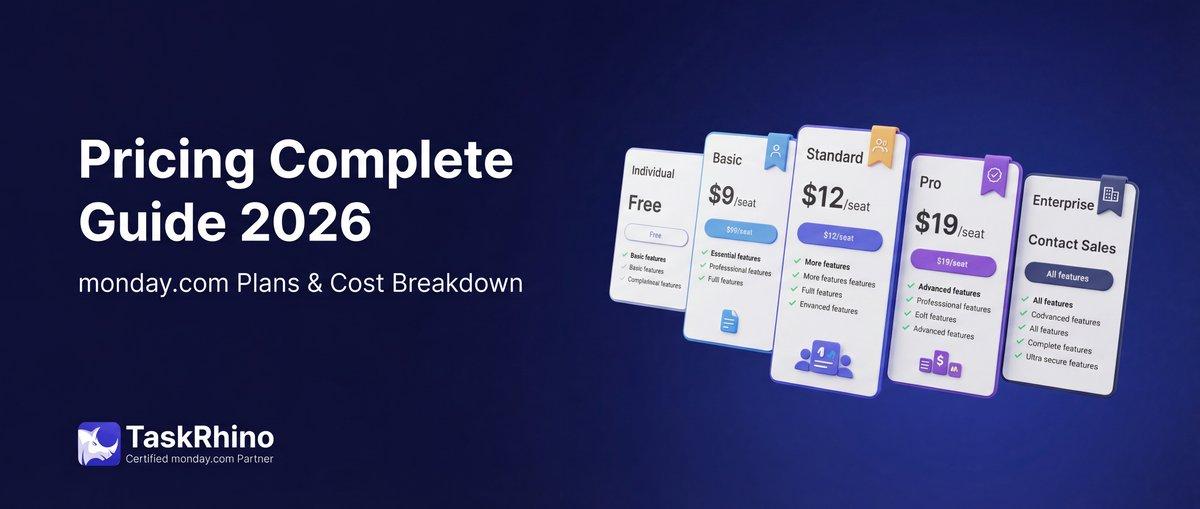
monday.com Pricing 2026: Complete Guide

Salesforce to Twenty Data Migration: Best Practices and Strategy
How to Self-Host Twenty CRM on AWS: Step-by-Step Guide