

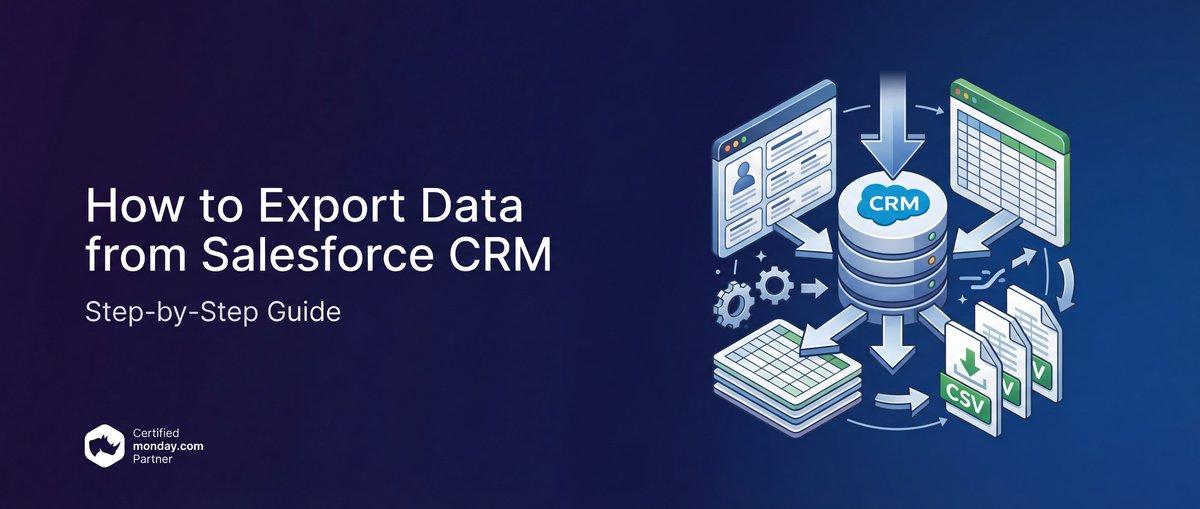
Comment exporter des données SalesTrack CRM au format CSV
Salesforce stores your customer relationships, sales history, and business-critical information. At some point, you will need that data outside of Salesforce.
Whether you need backup copies, want to analyze data in Excel, or are considering a CRM migration to Twenty CRM or other platforms, understanding how to export Salesforce data is essential.
The process is not complicated once you know your options, but Salesforce offers multiple export methods with different capabilities and limitations that trip up even experienced users.
This guide covers the three primary methods for exporting Salesforce data:
- Data Export Wizard
- Reports
- Data Loader
You will learn when to use each method, step-by-step instructions for beginners, and the common mistakes that cause failed exports and data loss. By the end, you will know exactly how to get your data out of Salesforce safely and completely.
At TaskRhino, we have helped clients with our Twenty CRM services. The export mistakes we cover in this guide come directly from real situations our team has encountered.
Let’s start by understanding why organizations export their Salesforce data in the first place.
Why Do Organizations Export Salesforce Data?
Before diving into the how, understanding the why helps you choose the right export method for your situation.
Common reasons for data export:
- Data backups: Salesforce provides strong security, but maintaining your own backup copies protects against accidental deletions, user errors, or compliance requirements. Organizations in regulated industries often require independent data copies. Salesforce’s own data recovery service costs $10,000 or more, making preventive exports a smart investment.
- Reporting and analysis: While Salesforce offers built-in reporting, many teams prefer analyzing data in Excel, Google Sheets, or dedicated business intelligence tools. Exporting allows deeper analysis with familiar software and custom visualizations that Salesforce’s native reporting cannot easily produce.
- CRM migration: When switching platforms or evaluating alternatives, you need to extract data from Salesforce to assess migration feasibility. Organizations exploring modern CRM options like Twenty CRM often begin with data exports to understand what transfer would involve and identify potential data quality issues before migration. In fact, many companies are now leaving Salesforce for open-source CRM platforms that offer greater flexibility and lower total cost of ownership.
- Compliance and audits: Many industries require organizations to retain records for specific periods. GDPR, HIPAA, SOX, and industry-specific regulations often mandate data retention policies. Exported data files help meet regulatory requirements, support audit processes, and ensure business continuity.
- Sharing with external parties: Contractors, consultants, or partner organizations may need access to specific datasets without requiring full Salesforce access or additional license costs. A single Salesforce license costs $165/month or more for the Enterprise edition, and these are just the visible expenses. When you factor in Salesforce’s hidden costs like add-ons, integrations, and consultant fees, exports become an even more cost-effective alternative for occasional data access.
Understanding your purpose helps determine which export method to use and what data to include during Salesforce to Twenty CRM migration. Now let’s examine exactly what data Salesforce allows you to extract.
What Data Can You Export from Salesforce?
Salesforce allows you to export most standard and custom object data. Understanding what you can extract helps you plan your export strategy and avoid surprises.
Exportable data includes
| Data Category | Examples | Export Considerations |
|---|---|---|
| Core CRM Objects | Accounts, Contacts, Leads, Opportunities | Most straightforward to export |
| Activity Records | Tasks, Events, Email Logs | May have volume limits |
| Support Objects | Cases, Solutions, Knowledge Articles | Requires appropriate permissions |
| Custom Objects | Any objects your organization created | Field-level security applies |
| Files and Documents | Attachments, Content Documents | Requires separate export process |
| Historical Data | Field history, audit trails | Limited retention in some editions |
Data you cannot easily export
Some Salesforce data presents export challenges:
- Encrypted fields: Data encrypted with Salesforce Shield requires decryption keys
- External objects: Data stored in external systems via Salesforce Connect
- Certain metadata: Page layouts, workflows, and configuration settings require separate tools
- Deleted records: Items in the Recycle Bin need restoration before export
The specific data available depends on your Salesforce edition and user permissions. Some metadata and system fields have export restrictions. Organizations using Salesforce’s paid add-ons may have additional exportable data types.
With a clear picture of what data you can export, let’s explore the three methods Salesforce provides for extracting that information.
Need Help with Your Salesforce Data?
Whether you are planning a migration, need data quality improvements, or want expert guidance on CRM strategy, TaskRhino is here to help.
Three Methods to Export Data from Salesforce
Salesforce provides three primary export options. Each method suits different needs and technical comfort levels. Choosing the right method saves time and prevents incomplete exports.
Quick comparison
| Method | Best For | Skill Level | Time Required |
|---|---|---|---|
| Data Export Wizard | Full backups, compliance archives | Beginner | Hours to days |
| Reports | Filtered subsets, specific record sets | Beginner | Minutes |
| Data Loader | Large volumes, technical users | Intermediate | Minutes to hours |
Let’s examine each method in detail, starting with the simplest option for beginners.
Method 1: Data Export Wizard
The Data Export Wizard is the simplest option for complete database backups. It creates CSV files of all your Salesforce data without requiring technical skills or additional software installation.
Best for: Full backups, compliance archives, and users who want all data at once.
Step-by-step instructions
- Log in to Salesforce with administrator credentials
- Click the gear icon in the top-right corner
- Select Setup from the dropdown menu
- Type “Data Export” in the Quick Find search box
- Click Data Export under the Data section
- Choose Export Now for an immediate export or Schedule Export for recurring backups
- Select your encoding preference (UTF-8 works for most situations and handles international characters)
- Check the boxes for objects you want to include (select all for a complete backup)
- Choose whether to include images, documents, and attachments (increases export size significantly)
- Click Start Export
Salesforce will process your request and send an email notification when files are ready for download. Large exports may take several hours to complete depending on your data volume.
What happens after you click export
Salesforce queues your export request and processes it based on system load. You will receive an email notification when files are ready. The export creates multiple CSV files organized by object type, compressed into ZIP archives for download.
Data Export Wizard limitations
- Admin access required: Available only to System Administrators and users with the “Weekly Export” permission
- Frequency restrictions: Export frequency depends on your Salesforce edition. Enterprise and Unlimited editions allow weekly exports. Professional edition limits scheduled exports to monthly. You cannot run exports more frequently than your edition allows.
- 48-hour download window: Files remain available for download for 48 hours only. Miss the window and you must run the entire export again.
- No filtering: Cannot filter or customize which specific records to include. You get everything or nothing for each object.
- Processing delays: Large databases can take 24-48 hours to process, and Salesforce provides no progress indicator
The Data Export Wizard works well for complete backups, but what if you only need specific records? That’s where Reports come in.
Method 2: Salesforce Reports
Reports offer more control over which records to export. You can apply filters, choose specific fields, and export smaller, targeted datasets. This method works well when you need specific information rather than complete backups.
Best for: Exporting specific record sets, sharing data subsets, creating filtered lists, and ad-hoc data requests.
Step-by-step instructions
- Navigate to the Reports tab in Salesforce
- Click New Report or open an existing report
- Select the report type that matches your data needs (Accounts, Contacts, Opportunities, etc.)
- Add the fields you want to include using the outline pane on the left
- Apply filters to narrow down records (date ranges, record owners, status values, etc.)
- Click Run to preview results and verify you have the right data
- Click the dropdown arrow next to the report name
- Select Export
- Choose your format: Formatted Report (Excel with formatting) or Details Only (CSV)
- Click Export to download the file
Choosing the right export format
- Formatted Report (Excel): Preserves groupings, subtotals, and formatting. Limited to 2,000 detail rows. Best for reports you will present or share without further processing.
- Details only (CSV): Raw data without formatting. Supports larger row counts. Best for data you will import elsewhere or analyze in other tools.
Report export limitations
- Row limits: Maximum of 2,000 rows in formatted exports. Detail-only exports support more rows but Salesforce may truncate very large result sets.
- Field restrictions: Complex report types may not include all fields from related objects. Joined reports have additional limitations.
- Requires report knowledge: Building effective reports requires understanding Salesforce’s report builder, report types, and filter logic.
- No attachments: Reports cannot export file attachments or documents associated with records.
Reports handle most filtered export needs, but organizations with large data volumes or technical requirements often need something more powerful. Data Loader provides that capability.
Planning a CRM Migration from Salesforce?
Exporting your Salesforce data is the first step in evaluating alternatives. Our migration services include data mapping, test migrations, and validation to ensure your information transfers completely and accurately.
Method 3: Data Loader
Data Loader is a desktop application for handling large data volumes. It works well for exporting thousands or millions of records that exceed report limits. Technical users and administrators prefer Data Loader for its flexibility and power.
Best for: Large-scale exports, technical users, automated extraction processes, and situations requiring precise control over exported fields.
Step-by-step instructions
- Download Data Loader from Salesforce Setup (search “Data Loader” in Quick Find)
- Install the application on your Windows or Mac computer
- Open Data Loader and click Export (or Export All to include deleted and archived records)
- Log in with your Salesforce credentials
- Select the object you want to export (Accounts, Contacts, etc.)
- Choose a destination folder and filename for the CSV output
- Click Next to open the query builder
- Select the fields to include in your export by checking boxes
- Optionally add WHERE conditions to filter records (uses SOQL syntax)
- Click Finish to start the export
Data Loader downloads records directly to your computer as CSV files. It handles millions of records efficiently and provides progress indicators during export.
Advanced Data Loader features
SOQL queries: Write custom queries to filter and join data across related objects. Example: SELECT Name, Email, Account.Name FROM Contact WHERE CreatedDate > 2024-01-01
Batch processing: Configure batch sizes to optimize performance for your data volume and network speed.
Command-line interface: Automate exports using scripts and scheduled tasks for regular backup processes.
Data Loader limitations
- Installation required: Requires Java and installation on your local computer
- One object at a time: Exports one object per operation. Exporting related data requires multiple export passes.
- Technical knowledge helpful: Understanding of Salesforce objects, fields, and SOQL query syntax improves results. Organizations without in-house expertise often weigh the cost of hiring help, and understanding typical Salesforce consultant rates can help you budget accordingly.
- No relationship preservation: You must export related objects separately and maintain relationships through ID fields
- No file attachments: Cannot export files or documents directly. These require separate API calls or tools.
Now that you understand all three export methods, following best practices will help ensure your exports succeed on the first attempt.
12 + Best Practices for Exporting Salesforce Data
Following these guidelines helps ensure successful exports and protects your data. These recommendations come from TaskRhino’s experience helping organizations manage their Salesforce data across client engagements.
Before you export
- Plan your export strategy: Identify which objects and fields you need before starting. Exporting everything creates large files that are difficult to work with. Document your requirements and create a checklist of objects to export.
- Verify user permissions: Confirm you have the necessary permissions to export the data you need. Missing permissions result in incomplete exports without warning. Check both object-level and field-level security settings.
- Schedule exports during off-peak hours: Large exports can impact org performance for other users. Schedule Data Export Wizard jobs and Data Loader operations during non-business hours, weekends, or early mornings when system load is lowest.
- Check data quality first: Run reports to identify data issues before exporting. Duplicate records, missing fields, and inconsistent formatting are easier to fix in Salesforce than in exported files.
- Choose the right tool for data volume: For datasets exceeding 50,000 records, use API-based tools like Salesforce Data Loader instead of the UI-based Data Export Wizard. Data Loader handles massive datasets more efficiently and provides better progress visibility.
During the export
- Always include unique record IDs: Include the 18-character Record ID for every object you export (Lead ID, Contact ID, Account ID, etc.). These IDs ensure proper data mapping and prevent duplicates during re-imports or migrations. Without IDs, you cannot reliably match records between systems.
- Apply granular filters: Instead of full database exports, use filters to export only necessary data. Report filters like “Created Date = LAST 7 DAYS” or “Modified Date = THIS MONTH” reduce file sizes and processing time significantly. Export what you need, not everything you have.
- Test with small exports first: Before running a full database export, test your process with a limited record set to verify results match expectations. This catches configuration errors before they affect large exports.
- Document field mappings: Create a reference document showing which fields you exported from each object. This documentation proves invaluable when importing data elsewhere or troubleshooting issues.
- Export metadata separately: Data exports only include records. For a complete backup, also export metadata including custom objects, fields, workflows, validation rules, and Apex code using tools like Salesforce CLI, Change Sets, or third-party metadata backup solutions.
After the export
- Monitor export jobs and download promptly: Regularly check export logs to ensure jobs complete successfully. Data Export Wizard files expire after 48 hours, and Salesforce provides no warning before deletion. Set calendar reminders and designate backup personnel to download files if you are unavailable.
- Verify completeness: Compare record counts between Salesforce and your exported files. Missing records indicate permission issues or export errors. Spot-check specific records to confirm data accuracy.
- Secure exported files with encryption: Salesforce data contains sensitive customer information subject to privacy regulations. Store exported CSV files with AES-256 encryption in secure, restricted-access locations. Implement access controls, maintain audit logs, and delete exports when no longer needed to maintain compliance with GDPR, HIPAA, and other regulations.
- Document your process: Keep records of what you exported, when, and why. This documentation helps with compliance audits, troubleshooting, and future exports.
Schedule and automate regular backups
Set up automated exports: Utilize the Salesforce Data Export Service to schedule automatic weekly (Enterprise/Unlimited) or monthly (Professional) backups. Automation reduces the risk of human error and ensures consistent backup coverage without manual intervention.
Establish a backup routine: Create a documented backup schedule that includes:
- Weekly full data exports via Data Export Wizard
- Daily incremental exports of high-change objects via Data Loader
- Monthly metadata backups via Salesforce CLI
- Quarterly backup verification and restore testing
Even with best practices, certain mistakes trip up both beginners and experienced users. Learning from common errors saves significant time and frustration.
7 Common Mistakes to Avoid When Exporting Salesforce Data
After helping numerous clients with CRM data management, TaskRhino has seen these export mistakes repeatedly. Learning from others’ errors saves time and prevents data loss.
Mistake 1: Forgetting relationship ID fields
What happens: You export Contacts but forget to include the AccountId field. Now you have a list of contacts with no way to connect them to their parent companies.
Why it matters: Salesforce uses 18-character ID fields to link related records. Without these IDs, you cannot reconstruct relationships between objects. An export of Contacts without AccountId is just a list of names and emails with no business context.
How to prevent it:
Before exporting any object, identify all lookup and master-detail relationship fields. Create a checklist:
- Record ID (always include)
- Parent object IDs (AccountId, OpportunityId, etc.)
- Owner ID (if you need to track record ownership)
- Created By and Modified By IDs (for audit purposes)
Mistake 2: Ignoring field formatting differences
What happens: Dates, phone numbers, currencies, and other formatted fields export differently than they display in Salesforce. Your analysis or import fails because the data format does not match expectations.
Why it matters: Salesforce stores dates in ISO format (2024-01-15) but may display them as “January 15, 2024” in the UI. Phone numbers may include or exclude country codes. Currency fields may or may not include symbols. These differences cause import failures and analysis errors.
How to prevent it:
- Export a small sample first and examine the actual values
- Document the format for each field type
- Use data transformation tools to standardize formats before importing elsewhere
- Pay special attention to date/time fields, which include timezone information
Common format surprises:
| Field Type | Displayed | Exported |
|---|---|---|
| Date | January 15, 2024 | 2024-01-15 |
| DateTime | 1/15/2024 3:30 PM | 2024-01-15T15:30:00.000Z |
| Phone | (555) 123-4567 | 5551234567 or +15551234567 |
| Currency | $1,234.56 | 1234.56 |
| Percent | 25% | 0.25 or 25 |
Mistake 3: Missing the 48-hour download window
What happens: Salesforce completes your Data Export Wizard request, sends an email notification, but you do not download the files within 48 hours. The files expire and you must run the entire export again.
Why it matters: Large exports can take 24-48 hours to generate. If you miss the download window, you lose days of time and must restart the process. For organizations with limited export frequency (monthly for Professional edition), this can delay critical projects significantly.
How to prevent it:
- Set a calendar reminder when you initiate an export
- Configure email alerts to ensure notifications reach you
- Designate a backup person who can download if you are unavailable
- Consider using Data Loader for time-sensitive exports since files download immediately
Mistake 4: Exporting without defining scope
What happens: You click “Export All” without considering what you actually need. You end up with gigabytes of data, most of which is irrelevant to your purpose.
Why it matters: Unfocused exports create several problems:
- Files too large to open in Excel (over 1 million rows)
- Wasted time downloading and processing unnecessary data
- Difficulty finding the information you actually need
- Storage costs for archiving large files
- Security risks from retaining more sensitive data than necessary
How to prevent it:
- Define your requirements before starting
- List the specific objects and fields you need
- Apply date filters to limit historical data
- Exclude system fields and audit fields unless specifically needed
- For Reports, use filters aggressively to narrow results
Mistake 5: Overlooking file attachments and documents
What happens: You export your Account and Contact records, but all the attached files, proposals, contracts, and documents remain in Salesforce. Your export appears complete but is missing critical business information.
Why it matters: Standard exports only include structured data (fields and values). Files attached to records require separate export processes. Organizations often discover missing attachments only when they need them later or during a migration.
How to prevent it:
- Identify objects with attachments before exporting
- Use Content Export tools or API-based solutions for files
- Include ContentDocumentLink data to maintain file-to-record relationships
- Verify file counts match between source and export
- For migrations, plan file transfer as a separate workstream
Mistake 6: Not validating export completeness
What happens: Your export completes without errors, but you do not verify that all records transferred successfully. Weeks later, you discover missing data that you assumed was included.
Why it matters: Exports can fail silently for several reasons:
- Permission issues hiding certain records
- Governor limits truncating large result sets
- Filter conditions excluding records unexpectedly
- Field-level security hiding specific values
How to prevent it:
- Compare record counts: run a count query in Salesforce and compare to exported row counts
- Spot-check specific records: verify that known records appear in the export with correct values
- Check for null values: unexpected blanks may indicate permission issues
- Validate relationship integrity: ensure child records link to parent records that exist in your export
Mistake 7: Ignoring data quality issues
What happens: You export data without addressing duplicates, incomplete records, or inconsistent values. The export succeeds, but the data is not usable for your intended purpose.
Why it matters: Exports preserve data quality problems. If your Salesforce data contains duplicates, your export contains duplicates. If 30% of contact records lack email addresses, your exported list has the same gap. Exporting does not fix data problems.
How to prevent it:
- Run data quality reports before exporting
- Use Salesforce duplicate management to merge records
- Consider data cleansing as a project before major exports
- Document known data quality issues for downstream users
Avoiding these mistakes makes exports more reliable, but sometimes the export process reveals deeper issues with your Salesforce implementation that deserve attention.
Struggling with Salesforce Data Quality
TaskRhino helps organizations clean, deduplicate, and standardize Salesforce data before migration to Twenty.com or other platforms. Our CRM consulting services include data quality assessments and remediation planning.
When a Simple Export Reveals Bigger CRM Problems: 4 Signs to Check
Sometimes the export process reveals underlying issues with your Salesforce implementation. These signals suggest it might be time to evaluate your CRM strategy.
Signs your Salesforce data needs attention
- Export takes multiple attempts: If you consistently struggle to export clean, complete data, your Salesforce configuration may have grown too complex for your needs. This is a common symptom of Salesforce complexity that compounds over time as customizations accumulate.
- Nobody understands the data model: When team members cannot explain which objects store which information, data management becomes increasingly difficult.
- Duplicate and inconsistent records: High volumes of duplicates indicate process problems that will persist regardless of your CRM platform.
- Missing critical information: If exports consistently lack information that should exist, users may not be entering data due to system complexity. Poor data entry is often a direct consequence of low Salesforce user adoption, where teams resist using a system they find unintuitive.
Questions to consider
- Does your team actively use Salesforce, or do they maintain separate spreadsheets?
- Can business users generate the reports they need, or does every request require admin help?
- Is your Salesforce data accurate and complete, or do you regularly discover gaps?
- Does your Salesforce investment deliver value proportional to its cost? Many organizations find that their Salesforce CRM projects underperform relative to expectations, especially as needs evolve.
Organizations answering negatively to these questions may benefit from evaluating the best Salesforce alternatives designed for simplicity and usability.
Export Data from Salesforce CRM With the Right Expertise
Exporting data from Salesforce CRM is a routine task that supports backups, reporting, migration planning, and compliance needs. The method you choose depends on your specific requirements and technical comfort level.
- Data Export Wizard works well for complete backups and compliance archives when you need everything at once and can wait for processing.
- Reports offer filtered exports for specific needs when you only need a subset of records and want immediate results.
- Data Loader handles large volumes efficiently when you need to export millions of records, specific objects, or require precise control over the process.
The issues we’ve highlighted aren’t theoretical. They’re drawn from real-world challenges TaskRhino has encountered across 110+ client engagements. In nearly every case, these problems were avoidable with the right planning and governance.
When routine data exports surface inconsistencies, broken relationships, or configurations no one fully understands, it’s usually a signal of deeper CRM health issues. Customer data is a core business asset. You should always be able to access, trust, and act on it.
Let Us Export Your Salesforce Data Seamlessly
TaskRhino helps you with a clear action plan to export data from Salesforce CRM, safely and seamlessly, whether you are looking to migrate to Twenty CRM or just want to export the data.
Frequently Asked Questions
How often can I export data from Salesforce?
Export frequency depends on your Salesforce edition. Enterprise and Unlimited editions allow weekly exports through the Data Export Wizard. Professional edition limits scheduled exports to monthly. Reports and Data Loader have no scheduling restrictions, so you can export as often as needed using those methods. Organizations needing daily backups typically use Data Loader with automated scripts or third-party backup solutions.
What format does Salesforce export data in?
Salesforce primarily exports data as CSV (comma-separated values) files. Reports also offer Excel-formatted exports with preserved groupings and formatting. CSV files open in any spreadsheet application including Excel, Google Sheets, and Numbers. The format preserves data but may not retain formatting like colors or fonts. Large exports may split across multiple files.
Can I export Salesforce data without admin access?
Users can export data through Reports if they have permission to run and export reports. The Data Export Wizard and full database exports typically require administrator access or the “Weekly Export” permission. Your Salesforce admin can create scheduled exports and share the downloaded files with you. Data Loader requires appropriate API permissions to connect.
Is there a limit to how much data I can export?
Data Loader handles millions of records efficiently with no practical limit for most organizations. Reports limit formatted exports to 2,000 rows, though detail-only exports support larger volumes. The Data Export Wizard includes all records without row limits but processing time increases with data volume. Very large organizations may need to export in segments to manage file sizes.
How do I maintain relationships between exported records?
Salesforce uses unique 18-character record IDs to link related records. When exporting, include all ID fields and lookup relationship fields. For example, when exporting Contacts, include the AccountId field to maintain the relationship to their parent Account. When exporting Opportunities, include AccountId and ContactId fields. You will need these IDs when importing data elsewhere or reconstructing relationships for analysis.
Can I automate Salesforce data exports?
Yes. Data Export Wizard supports scheduled weekly or monthly exports depending on your edition. For more frequent automation, you can use Data Loader’s command-line interface with Windows Task Scheduler or cron jobs.Salesforce APIs enable custom export automation through development, though you should be aware of Salesforce API limits on Enterprise edition that can affect how frequently you run automated exports. Third-party backup tools like OwnBackup, Spanning, and Odaseva provide automated daily backups with additional features like point-in-time recovery.

Want to Host, Customize, or Migrate to Twenty CRM
Editor's Choice
monday.com Pricing 2026: Complete Guide

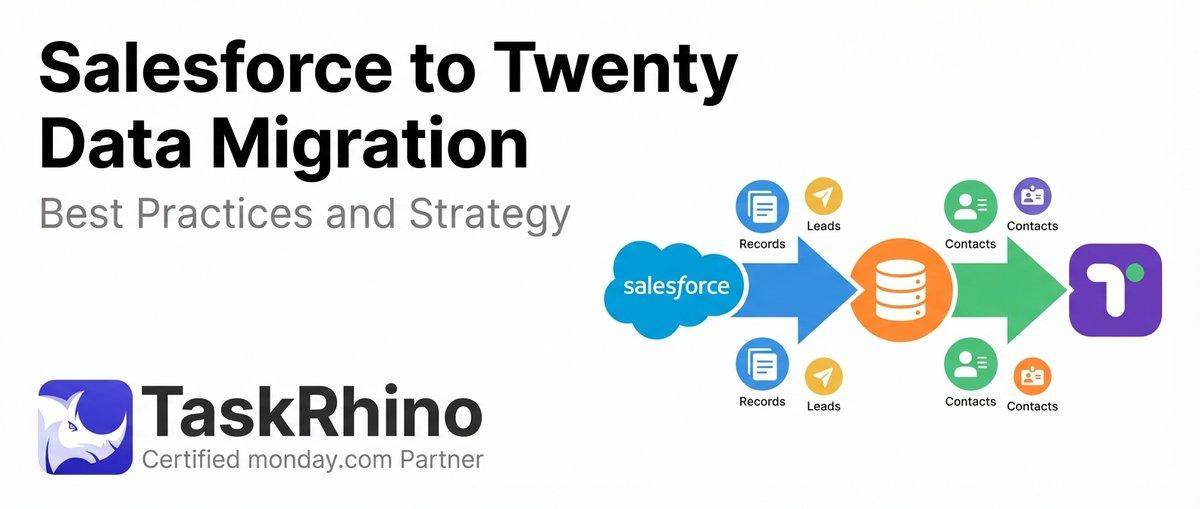
Salesforce to Twenty Data Migration: Best Practices and Strategy
How to Self-Host Twenty CRM on AWS: Step-by-Step Guide