

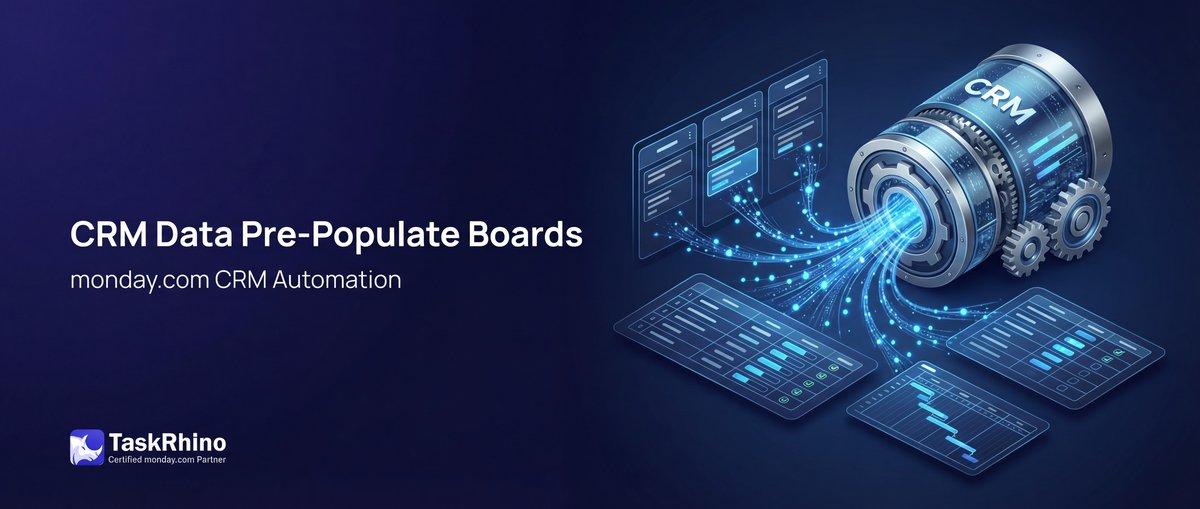
monday.com CRM Data Pre-Populate New Project Boards
You just closed a deal in monday.com CRM. Client name: Acme Corporation. Event date: March 15, 2026. Venue: Downtown Convention Center. Contact: sarah@acmecorp.com.
Now you need all of that information on your new Project Overview board. So you open the deal, highlight the client name, copy it, switch to the new board, click into the Name column, paste. Repeat for date. Repeat for venue. Repeat for email. Repeat for…
5 minutes later, you’re done entering data you already entered once.
This is the CRM-to-project data gap that creates busywork, introduces typos, and slows down every project kickoff. The information exists — it’s sitting right there in your CRM board — but monday.com has no native automation to transfer it when you create new project boards.
Boards Pain Point #3: CRM Data Should Pre-Populate New Project Boards
Here’s what teams need:
When a CRM deal moves to “Won” and a new project workspace is created, the deal data should automatically populate the new project boards:
- Client name from the Deal Name → Name column on Project Overview
- Contact email from the CRM Contact column → Email column on Overview
- Event date from CRM Date → Date column on Overview
- Venue/Location from CRM Location → Location on Overview
- Deal type (show type, project category, service tier) → Status or Dropdown column on Overview
- Deal value, budget, priority → Number columns
Without manual copy-pasting. Without opening two boards side-by-side. Without typos.
What monday.com offers:
The Workflow Builder’s “Create board from template” action creates a new board — but it creates it empty. Source There is no column mapping, no data transfer from the trigger board to the newly created board. The new board has your template’s structure (columns, groups, views) but zero data.
Even monday.com’s “Cross-board automations” Source — which can copy column values between boards — only work when both boards already exist and are connected. You can’t use them during board creation because the target board doesn’t exist yet.
The result: manual data entry after every board creation.
What Monday.com Users Are Saying
Thread: Create board from template in master board and link items — June 2023
“I have a master board, low level boards setup created. In the master board, I’m using the ‘create board from template’ automation to create the low level board when a status on an item changes in the master board.” — wesoos (Wessel Oosthuizen)
The user is trying to connect the CRM board to the newly created project board and transfer data. Monday.com staff asked clarifying questions but provided no solution.
Thread: Is it possible to automatically create and connect Items to a Board created from a template — November 2023 – August 2024
“how can we connect board automatically if the board is created from a template?” — Maayango, December 28, 2023
“Did you ever get an answer to your question above that worked?” — tkthieme, August 11, 2024
Monday.com staff (BiancaT) suggested a mirror status column workaround but acknowledged no native solution exists for creating boards from templates AND automatically connecting/populating items.
Thread: Automation when creating new board from template — April 2022
“I’ve created a board template with tasks already pre-populated. The dependencies between tasks as far as due dates is already setup.” — pbeaudry (Phil), April 26, 2022
“I am not sure the dependencies will get triggered in that scenario.” — basdebruin, April 2022
Even within a single board, dependencies and due dates don’t auto-adjust when boards are created from templates. Cross-board data transfer is even further out of reach.
Official monday.com documentation confirms Source:
Cross-board “create item” automations can map columns between boards — but both boards must already exist. You can’t map columns from a CRM board to a board that doesn’t exist yet.
The documentation lists supported column types for cross-board mapping: Item name, People, Date, Status, Numbers, Timeline, Link, Phone, Email, Text, Priority, Label. Notably excluded: Location, Dropdown, Formula, Mirror, Connect Boards.
Auto-Create Project Folders from CRM
Status change → folder + boards + rosters + webhooks + automations. All automatic.
How BoardBridge Solves This
Here’s how it works:
Step 1: Read CRM Deal Data
When a CRM deal moves to “Won,” BoardBridge reads the deal item’s column values via monday.com’s API. It fetches:
- Item name (deal/client name)
- Email column value
- Date column value
- Status column value (e.g., “Show”, “Teebox”, “Corporate Event”)
- Dropdown column value (if applicable)
- Number columns (budget, deal value, headcount)
Step 2: Format Each Value by Column Type
Different monday.com column types require different data formats. BoardBridge formats each value correctly:
Text columns: Plain string (e.g., "Acme Corporation")
Email columns: JSON object with email and display text: “json { "email": "sarah@acmecorp.com", "text": "Sarah Johnson" } “
Date columns: ISO 8601 date string (e.g., "2026-03-15")
Status columns: JSON object with text label: “json { "label": "High Priority" } “
Dropdown columns: Same format as status (text label resolved to dropdown option)
Number columns: Numeric value (e.g., 50000 for a $50,000 deal)
Why this matters: If you just write “High Priority” as a plain string to a status column, monday.com rejects it. You need {label: "High Priority"} format. If the label doesn’t exist on the target board, monday.com creates it automatically (if create_labels_if_missing: true is set).
Step 3: Status Label Mapping by Text
Here’s a critical detail most tools get wrong:
Monday.com assigns different internal IDs to status labels on different boards. “High Priority” on your CRM board might have ID abc123, while “High Priority” on your Project Overview board has ID xyz789.
If you try to copy the ID from one board to another, it fails or maps incorrectly.
BoardBridge maps status values by their text labels, not IDs. When the CRM deal has status “High Priority,” the system writes {label: "High Priority"} to the target board. Monday.com resolves the text to the correct internal ID on that board. If the label doesn’t exist, it’s created.
This means your status values transfer reliably across boards, even though monday.com’s underlying data model makes this difficult.
Step 4: Write All Mapped Values in One API Call
All column values are written to the newly created Overview board via one createItem mutation with column values included:
“graphql createItem( board_id: "12345678", item_name: "Acme Corporation - Annual Event", column_values: { "text_column_id": "Downtown Convention Center", "email_column_id": "{\"email\":\"sarah@acmecorp.com\",\"text\":\"Sarah\"}", "date_column_id": "2026-03-15", "status_column_id": "{\"label\":\"High Priority\"}" } ) “
The item is created fully populated. No manual data entry. No follow-up updates.
The Entire Data Transfer Takes 1-2 Seconds
From “read CRM deal” to “populated Overview board item”: under 2 seconds. It happens while the folder and boards are being created, so by the time you open the new project, all the data is already there.
See How BoardBridge Handles Board Management
Book a free demo to see BoardBridge solve this exact problem — live, with your data.
Six Column Types Supported
BoardBridge currently maps six column types from CRM to project boards:
| Column Type | Example Data | monday.com API Format |
|---|---|---|
| Text | “Acme Corporation” | Plain string |
| sarah@acmecorp.com | {email, text} object | |
| Date | March 15, 2026 | ISO 8601 string |
| Status | “High Priority” | {label} object with text |
| Dropdown | “Corporate Event” | {label} object with text |
| Number | 50000 | Numeric value |
Not currently supported:
- People columns — require monday.com user IDs, which vary per workspace
- Dependencies, Timeline — relational columns that reference other items
- Formula, Mirror — computed columns (read-only, can’t be written to)
- Connect Boards — relational column requiring existing target items
- Location — requires structured address object (planned for future release)
- File — files are uploaded separately, not part of column value updates
If you need People column mapping (e.g., assigning the deal owner to the project), this can be configured via conditional logic or separate workflow rules, but it’s not part of the automatic CRM data mapping.
Real-World Example: Event Management
CRM Deal Board has these columns:
- Deal Name: “Smith Wedding”
- Client Email: jenny@smith.com
- Event Date: June 20, 2026
- Venue: Riverside Pavilion
- Event Type: “Wedding” (Status column)
- Guest Count: 150 (Number column)
When deal moves to “Won”:
- New “Smith Wedding” project folder created
- 9 boards duplicated from templates into the folder
- On the Event Overview board, a new item is created:
- Item Name: “Smith Wedding”
- Client Email: jenny@smith.com
- Date: June 20, 2026
- Venue: Riverside Pavilion (Text column)
- Event Type: “Wedding” (Status label)
- Guest Count: 150
Zero manual data entry.
The project manager opens the new Event Overview board and sees all the client details already filled in, pulled directly from the CRM deal.
Column Mapping Configuration
You configure the CRM-to-project column mapping once during BoardBridge setup. The configuration looks like this:
CRM Board → Project Overview Board:
- CRM “Deal Name” → Overview “Event Name” (text)
- CRM “Client Email” → Overview “Contact Email” (email)
- CRM “Event Date” → Overview “Date” (date)
- CRM “Venue” → Overview “Location” (text)
- CRM “Event Type” → Overview “Type” (status)
- CRM “Guest Count” → Overview “Headcount” (number)
You can map as many or as few columns as needed. Once configured, every new project uses the same mapping.
What if column names change?
BoardBridge maps by column ID, not column name. Monday.com column IDs are immutable — even if you rename “Event Date” to “Show Date” on your board, the column ID stays the same. Your mapping continues to work.
This is the same approach BoardBridge uses for form field mapping, and it’s why forms don’t break when you rename columns (unlike third-party tools that map by name).
Limitations You Should Know
The Overview board must be one of your duplicated template boards. Data is written to one target board per project (typically the main “Overview” or “Details” board). If you need data to flow to multiple boards, you can configure secondary mappings, but the primary flow is one CRM board → one project board.
Only 6 column types map automatically. If your CRM workflow relies heavily on People columns, Connect Boards, or other unsupported types, you’ll need workarounds (like conditional workflows that assign people based on deal owner name matching).
Status labels must exist or be creatable. If your CRM has a status label “VIP Client” but your project board’s status column is set to “locked labels” (no new labels allowed), the write will fail. Best practice: allow label creation on project boards, or ensure all CRM status values already exist on the template board.
Need Help With Your monday.com Setup?
TaskRhino has implemented monday.com for 110+ teams. Get a free consultation.
Frequently Asked Questions
How can I automatically transfer CRM deal data like client name and event date to a new project overview board in monday.com without manual copy-pasting?
monday.com lacks native automation to pre-populate project boards from CRM deals when a deal status changes to ‘Won’, requiring manual entry otherwise. BoardBridge solves this by using the monday.com API to read column values from the CRM deal item—handling different column types like statuses and dates correctly—and instantly populates a new item on the target project board in under 2 seconds. This ensures the project overview board is fully populated by the time you access it, eliminating busywork and errors.
What automation triggers BoardBridge to map and populate data from a won CRM deal to multiple new project boards?
BoardBridge activates its CRM-to-project data mapping workflow immediately after new project boards are created from a CRM deal marked ‘Won’. It fetches all relevant column values via API, formats them for the target board’s column types (e.g., converting text labels to internal IDs for statuses), and writes them in one batch to create a fully populated item. This works reliably across boards despite monday.com’s data model challenges, supporting various column formats without manual intervention.
Why can’t monday.com native automations pre-populate project boards with CRM data, and what’s a reliable workaround?
monday.com’s native automations do not support direct data transfer from CRM deal items to new project boards due to limitations in cross-board data mapping and column type handling. BoardBridge provides a seamless workaround by automating the API-based read from the CRM board and write to the new project board, correctly formatting data like dates, emails, and labels for instant population. The process completes in seconds, ensuring no typos or repeated data entry.
How does BoardBridge handle different monday.com column types when transferring CRM data to a new project board?
BoardBridge reads CRM deal column values via API and formats them specifically for the target project board’s columns, such as resolving status text to internal IDs or preserving date structures. If a label doesn’t exist on the target board, it creates it automatically, ensuring reliable transfer across diverse column types like people, statuses, and text. This one-batch write populates the entire item without native monday.com limitations interrupting the flow.
Can I use monday.com automations to create a new project board from a CRM deal and auto-fill it with deal details like venue and contact email?
Native monday.com automations can create boards from templates when a CRM deal is won, but they cannot auto-fill columns with deal-specific data like venue or contact email due to no built-in cross-board population feature. BoardBridge extends this by triggering post-creation to map and populate all CRM data into the new board’s item via API in under 2 seconds. This creates a complete project kickoff item ready for use, bypassing manual pasting.
What’s the fastest way to sync closed CRM deal information to a project overview board while handling status labels and dates accurately?
Manual copy-pasting is the default due to monday.com’s lack of native CRM-to-project data sync, often taking minutes and risking errors. BoardBridge automates this by instantly reading the CRM deal via API when marked ‘Won’, formatting statuses (text to IDs), dates, and other values correctly, and populating the new overview board item in one efficient batch. The entire process finishes in under 2 seconds, so the board is ready upon opening.

Editor's Choice
monday.com Automation Safety: Preventing Duplicate Items


monday.com No Dry-Run Mode for Automations

monday.com Automation Test Sandbox Mode