

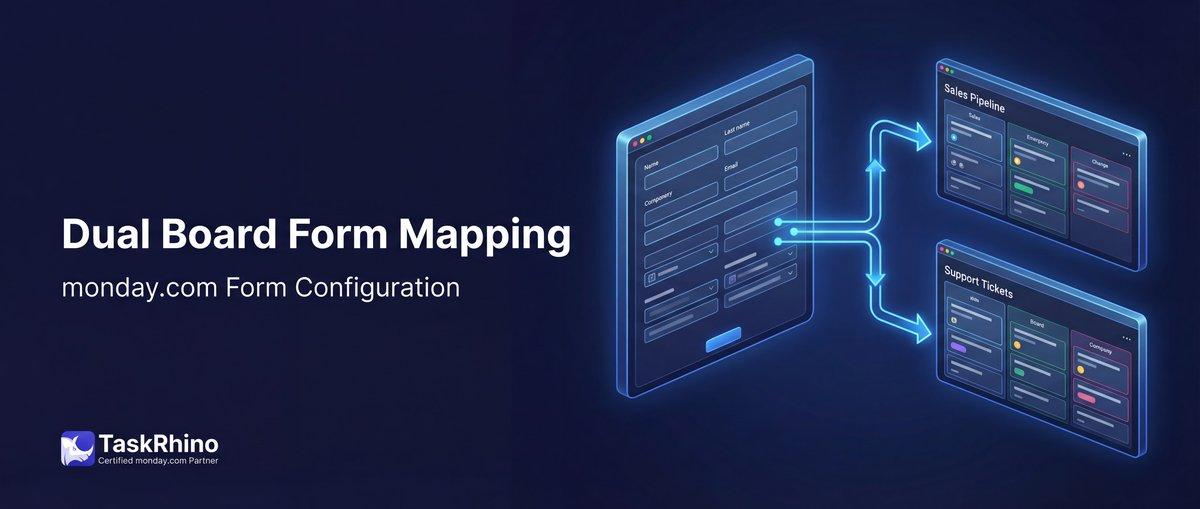
How to Map Forms to Dual Boards in monday.com
You built two monday.com boards. One for operations, one for reporting. You want a single intake form to populate both at the same time — one submission, data lands in two places. That’s monday.com form dual board mapping, and unfortunately, WorkForms can’t do it.
Here’s what you can actually do, and how teams are solving this without duct-taping together Zapier, Make, and a prayer.
The problem: one form, one board
Every WorkForms setup has the same constraint baked in: one form → one board. That’s it. When a respondent hits Submit, monday.com creates a new item on the board the form is attached to. There’s no option to simultaneously write any part of that submission to a second board.
This matters the moment your operations split across boards. It’s a very common setup:
- An intake board that captures client requests, vendor submissions, or employee forms
- A reporting or tracking board that aggregates data across projects or departments
In a perfect world, one form submission populates both. In monday.com’s world, you pick one.
Why monday.com can’t do dual-board form mapping
This isn’t a missing setting or a plan restriction you can pay your way out of — it’s a structural limitation of how WorkForms is built.
WorkForms targets exactly one board. Every form is created from within a specific board’s view, and submissions write to that board only. There’s no “also send data to board B” configuration, no secondary board selector, and no native automation that can split a single form submission across two boards in real time.
Two related column types make this worse:
- Connect Boards columns can’t be added to forms at all. If your boards are linked via a Connect Boards column, you’d expect a form submission to at least set that connection — it can’t. The Connect Boards column type is explicitly unsupported in WorkForms. A respondent has no way to establish that cross-board relationship through a form.
- Mirror columns are also excluded. Data that mirrors from a connected board is invisible to the form entirely — you can’t display it, and you can’t write to it.
The monday.com community has surfaced this issue repeatedly. One thread titled “Connecting a form to more than one board” captures the frustration directly:
“Connected board columns (and people columns, mirror columns, drop-down columns, country columns etc) are not supported in forms.”
Teams resort to workarounds: duplicate the form, use Zapier to copy data between boards after submission, or manually re-enter the information. None of these are reliable at scale.
Stop Creating Duplicates
BoardBridge forms update existing items — no Enterprise plan, no workarounds, no duplicates.
When do you actually need dual-board mapping?
More scenarios than you’d think. Here are the most common ones I see in monday.com implementations:
1. Operational board + reporting board A team captures intake on a project board but needs summary data — client name, submission date, request type — to appear on a cross-department reporting board automatically. Every manual copy step is a failure point.
2. Department-specific boards from a shared intake A company runs a single intake form for all client requests. Based on the request type, data needs to go to the operations board and the client services board. Not one or the other — both.
3. CRM board + delivery board When a new deal lands, you want the same intake form that captured the project scope to write to both the CRM board (for the account record) and the delivery board (for the project team). The data overlaps but the audiences don’t.
4. Vendor/client submissions with internal tracking External vendors submit availability or capacity forms. You need the external-facing board to capture their response and an internal tracking board to log receipt, timestamp, and routing status — from one submit.
5. HR onboarding across boards An employee onboarding form needs to write to the HR board (personal details, benefits enrollment) and the team’s project board (start date, role, assigned projects) simultaneously.
In every one of these cases, monday.com’s single-board constraint forces a workaround. The question is how much manual effort and integration complexity you’re willing to accept.
How dual-board form mapping works in BoardBridge
BoardBridge — Form & Workflow Automation for monday.com solves this with a feature called multi-board mapping in its Forms Engine. The concept is straightforward: when you build a form in BoardBridge, you designate a primary board and a secondary board. You then map each form field to the appropriate columns on each board. One submission writes to both.
Here’s what that looks like in practice:
| Form field | Primary board (Operations) | Secondary board (Reporting) |
|---|---|---|
| Client name | Client column | Account Name column |
| Request type | Category column | Service Type column |
| Submission date | Date Received column | Log Date column |
| Notes | Details column | (not mapped — field stays on primary only) |
Not every field has to map to both boards. You choose what goes where. A field can write to the primary board only, the secondary board only, or both — depending on what each board needs.
BoardBridge also supports status auto-update: when the form is submitted, you can automatically flip a status column on either board (for example, setting Form Status to Received on the operations board and Logged on the reporting board — triggered by the same submission).
Unlike WorkForms, BoardBridge forms target existing items via unique URLs, not just create new ones. But dual-board mapping works in both modes — whether you’re updating pre-existing items or creating new ones on both boards simultaneously.
See How BoardBridge Handles Form Updates
Book a free demo to see BoardBridge solve this exact problem — live, with your data.
Step-by-step: setting up dual-board mapping
Here’s how you configure this inside BoardBridge:
Step 1: Connect both boards In the BoardBridge admin panel, go to Integrations and ensure both your primary and secondary boards are connected to your monday.com workspace.
Step 2: Create a new form Navigate to Form Builder > New Form. Select your primary board when prompted. This is where the core data will land.
Step 3: Add the secondary board In the form settings, find the Secondary Board Mapping section. Select your second board from the dropdown. BoardBridge will load all available columns from that board.
Step 4: Map your fields For each form field, you’ll see two column selectors:
- Primary board column — which column on board one this field writes to
- Secondary board column — which column on board two this field writes to (optional per field)
Drag your fields into the form layout, connect them to the relevant columns on each board, and set any validation rules you need.
Step 5: Configure status updates (optional) In the Status Auto-Update section, set which status columns should change on submission — and on which boards. You can configure different status values for primary and secondary boards independently.
Step 6: Copy the form URL BoardBridge generates a clean, brandable form URL. Drop it in an email, embed it in a process doc, or send it via your monday.com automation. When someone submits, data writes to both boards instantly.
Pro tip: BoardBridge’s Email Automation can automatically send the form URL to the right person at the right time — triggered by a status change or button click on any board. You can set up the entire handoff without leaving BoardBridge.
Real-world example: event intake across two teams
A production company runs events across multiple venues. They use two boards in monday.com:
- Events Board — owned by the production team. Tracks show dates, venue logistics, crew assignments.
- Client Services Board — owned by the client management team. Tracks account relationships, billing milestones, contact notes.
When a new event is booked, both teams need information from the initial client intake form. Previously, the production team filled out the Events Board form, then manually sent relevant details to the client services manager — who re-entered it on their board.
With BoardBridge’s dual-board mapping:
- The intake form captures event name, date, venue, budget, and client contact in one submit.
- Event name, date, and venue write to the Events Board.
- Budget and client contact write to the Client Services Board.
- Both boards get a
Form Submittedstatus update automatically. - Each team’s board automation fires from there — crew assignment on one side, billing milestone creation on the other.
Two teams. One form. Zero re-entry.
Need Help With Your monday.com Setup?
TaskRhino has implemented monday.com for 110+ teams. Get a free consultation.
Frequently Asked Questions
Will conditional form questions map correctly to the same column across dual boards in BoardBridge?
How do I configure BoardBridge to map a single WorkForms submission to two separate boards without creating duplicates?
What column types from monday.com WorkForms are incompatible with dual-board mapping, and how does BoardBridge handle them?
Can cross-board automations in monday.com replicate dual-board form mapping, or will they hit linkage limits?
Why does my WorkForms setup fail to populate connected boards columns when trying to simulate dual-board mapping?
How do I avoid hitting the 10,000 item linkage limit when implementing dual-board form mapping for high-volume intake?
In a real-world event intake scenario, how does BoardBridge sync form data from operations to reporting boards bidirectionally?

Editor's Choice
monday.com Automation Safety: Preventing Duplicate Items

monday.com No Dry-Run Mode for Automations

monday.com Automation Test Sandbox Mode