

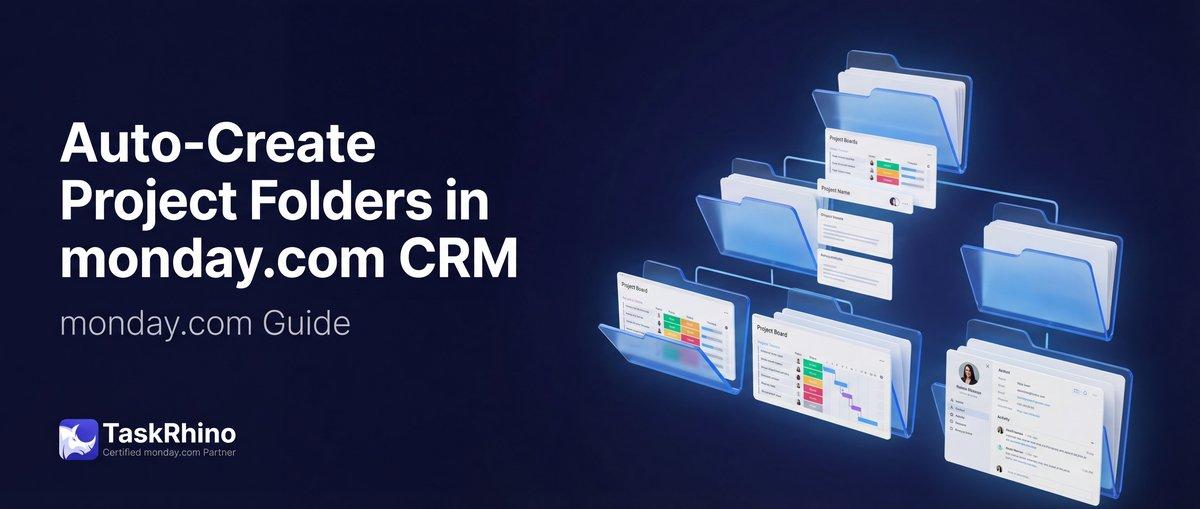
How to Auto-Create Project Folder with Boards from CRM Trigger
You mark a deal “Won” in your monday.com CRM. Now someone has to create the project folder, duplicate the template boards, copy over the client name and project date, add the team roster, and wire up all the automations.
On a good day, that takes 20 minutes. On a busy day — when you’ve just closed three deals — it takes an hour, something gets missed, and a board starts life with broken automations pointing at a template instead of the new project.
If you’re running any kind of service business — events, consulting, production, onboarding — this handoff from sale to delivery is one of the highest-stakes moments in your workflow. And monday.com auto create boards from CRM makes it harder than it should be.
Need this to work automatically? Book a free consultation and we’ll show you how BoardBridge handles the complete CRM-to-project setup.
Table of Contents
- What You’re Actually Trying to Do
- The Native monday.com Approach
- Step-by-Step: Setting Up Board Creation from a Status Trigger
- What Most Guides Don’t Tell You
- What to Do When Native Isn’t Enough
- A Real-World Example: Multiple Boards, One Status Change
- Frequently Asked Questions
What You’re Actually Trying to Do
When someone types “monday.com auto create boards from CRM” into Google, they usually mean one of three things:
Simple board creation — When a deal status changes to “Won,” create a single project board from a template.
Folder + multiple boards — When a deal closes, create a named project folder with organized workspace structure containing several boards (e.g., Overview, Tasks, Deliverables, Communications).
Full project setup — Folder, multiple boards, CRM data pre-populated, team roster loaded, automations running immediately.
Monday.com can help with the first. It partially handles the second. For the third — which is what most growing teams actually need — you’re on your own with native tools.
The Native monday.com Approach
Automation Pain Point #54: Monday.com’s Workflow Builder (available on Pro and Enterprise plans) Source includes a “Create board from template” action. Source This is the closest native tool to what you need.
What it can do:
- Trigger on a status column change (e.g., Deal Status → Won)
- Create a new board from a saved template
- Name the board based on a column value (e.g., the client name)
What it cannot do:
- Create a folder automatically — boards are created at the workspace root
- Create multiple boards in one automation (one workflow = one board)
- Copy CRM data into the new board’s columns
- Load a team roster onto the new board
- Register webhooks on the new board
- Clone your cross-board automations to point to the new boards instead of the templates
Plan restrictions: Pro plans are limited to 5 active workflows total. Enterprise gets 250. If you’re on Standard or below, the Workflow Builder isn’t available at all.
Step-by-Step: Setting Up Board Creation from a Status Trigger
Here’s how to set up the native approach on a Pro or Enterprise plan.
Step 1: Create your template board
Before you can create boards automatically, you need a template to create them from.
- Set up a board with your ideal project structure — columns, groups, any standard items
- Go to the board’s three-dot menu → Save as template
- Give it a clear name (e.g., “Project Overview Template”)
- Save it to your template library
Note: Custom automations you add to the template board will not carry over to boards created from it — more on this in the next section.
Step 2: Open the Workflow Builder
- In your monday.com workspace, click Automations in the left sidebar (or click the lightning bolt icon on your CRM board)
- Select Workflow Center (Pro/Enterprise only)
- Click + New Workflow
Step 3: Set your trigger
- Choose When → Status changes
- Select your CRM board
- Select the Deal Status column
- Set the value to Won (or whatever your “closed” status is)
Step 4: Add the board creation action
- Click + Add action
- Search for Create board from template
- Select the template you created in Step 1
- Set the board name — you can use a column value here:
{Deal Name}or{Company} - Save the workflow
Step 5: Test it
Change a deal’s status to “Won” and wait. The new board should appear in your workspace within 30–60 seconds.
What you’ll see: A new board named after your deal, at the root of your workspace (not inside a folder), with the template structure intact — but no CRM data, no team members, and no working automations.
That’s the native approach at its best. For a single-board, basic project setup, it works. For more complex setups, you may want to explore monday.com implementation services.
Auto-Create Project Folders from CRM
Status change → folder + boards + rosters + webhooks + automations. All automatic.
What Most Guides Don’t Tell You
This is where things get complicated. The steps above will get you a board. But if your actual project setup involves more than one board — or if you’ve spent time building automations on your template — you’re going to run into problems that no monday.com documentation will warn you about.
Problem 1: No folder creation, no matter what
Board Management Pain Point #54: Monday.com has no automation to create folders. None. The Workflow Builder can create boards, but it deposits them in your workspace root with no folder organization. Source
If you want a named project folder every time a deal closes, you’re either creating it manually or building a custom API integration.
Problem 2: One automation = one board
Automation Pain Point #55: There’s no way to create multiple boards from a single trigger using the native Workflow Builder. Source If you need five boards per project, you need five separate workflows — and five separate template boards.
On a Pro plan with a 5-workflow limit, you’ve just used all your automations on one project type. Teams running multiple project types hit this ceiling fast.
Problem 3: Your automations don’t follow the board
Automation Pain Point #75: This is the one that stings hardest. When monday.com duplicates a board from a template, it drops the following automations entirely:
- Cross-board automation recipes — they still point to the original template board, not the new project board
- Gmail, Outlook, and Slack integration automations — gone entirely
- Custom recipes — dropped on duplication
- Item mapping automations — not carried over
Monday.com’s own documentation confirms this: Source “When duplicating a board with custom automations using integration blocks, the automations will not carry over to the newly duplicated board and must be recreated on the duplicate board.”
A thread titled “Duplicate board not carrying ALL automations” has accumulated 20+ replies spanning from September 2021 through June 2024 — with no resolution from monday.com. Users in that thread described the issue as a “HUGE time saver” if it were ever fixed. One person reported a board with 44 automations producing a duplicate with only 39. Five automations silently dropped, no warning.
Another thread from February 2024 captured the scale of this problem: “Rewriting all the automations 200 times is incredibly tedious.”
Problem 4: CRM data stays in the CRM
Data Flow Pain Point #56: When monday.com creates a board from a template, it names the board using a column value — that’s it. The client name, email address, deal date, project type, budget — none of that flows into the new board’s columns. You copy it manually.
For teams running high-volume projects (10, 20, 50+ per month), that’s a meaningful amount of data entry, spread across every board in every new project folder.
Problem 5: Status column labels silently mismatch
This one catches teams by surprise. Monday.com uses different internal IDs for status labels across boards — even when the text is identical. “High Priority” on your CRM board has a different internal ID than “High Priority” on your project board.
When you try to map status values from the CRM to the new project board, you’re mapping IDs, not text. If you don’t account for this, status values arrive blank or mapped to the wrong option with no error message.
The “How to copy status columns with labels to another existing board” thread surfaced this in September 2023. The root cause: “Changes made to the default board labels will not change any labels in Status Columns that already exist.” Each board maintains its own label-to-ID mapping internally.
See How BoardBridge Handles Board Management
Book a free demo to see BoardBridge solve this exact problem — live, with your data.
What to Do When Native Isn’t Enough
If your CRM-to-project handoff requires more than a single new board — if it involves a folder, multiple boards, CRM data transfer, roster loading, and working automations — you have three options.
Option 1: Build it with the monday.com API
Monday.com’s API supports folder creation, board duplication, item creation, and webhook registration. A custom integration (Make, Zapier, or a custom app) could orchestrate all of this.
Trade-offs: Significant setup time. Ongoing maintenance as your board structure evolves. API rate limits when creating many boards at once. No admin UI — changes require code changes.
Good for teams with dedicated ops or engineering resources who want full control. TaskRhino offers custom app development if you need expert assistance.
Option 2: Assemble it from marketplace apps
Several apps in the monday.com marketplace address pieces of this problem — board duplication, cross-board item copying, webhook management. Stacking them gets you partway there.
Trade-offs: Each app adds a vendor dependency and monthly cost. Apps interact unpredictably when combined. Board duplication still doesn’t carry automations over between apps.
Good for teams willing to accept partial automation in exchange for lower setup effort.
Option 3: Use BoardBridge — Form & Workflow Automation for monday.com
BoardBridge was built by TaskRhino specifically for this use case. The CRM-Won flow handles the complete project setup in a single trigger, without any manual steps:
What happens when a deal is marked “Won”:
Idempotency check — Before creating anything, the system confirms this project doesn’t already exist. If the “Won” status was accidentally clicked twice, only one project gets created.
Folder creation — A named project folder is created automatically, using the deal name from your CRM item.
Board duplications — All template boards are duplicated into the new folder simultaneously, each renamed with the project name (e.g., “Acme Corp – Task Board”).
Roster loading — Team members from your master roster boards are automatically added to the project boards. They’re there before you open the folder.
CRM data mapping — Client name, email, project date, and other deal fields are copied from the CRM item to the Project Overview board. Dates go to date columns. Statuses map by text label — not by internal ID — so values land in the right place across boards.
Webhook registration — Every new board is immediately connected to the automation system. No manual webhook setup.
Automation cloning — All workflow rules from your template boards are cloned onto the new boards with correct cross-board references. When your automations trigger a status change on one board to create an item on another, they’re already pointing to this project’s boards — not the templates.
The entire flow runs in seconds. By the time you click into the new folder, everything is in place.
The key difference: BoardBridge stores and manages automations outside of monday.com’s native automation engine. That’s why they survive board duplication. Monday.com’s native automations are hardcoded to board IDs — those IDs change when you duplicate. BoardBridge remaps all board references during the cloning step, so cross-board workflows work correctly from day one on every new project.
For teams running 20, 50, or 100+ projects per year, the time savings compound quickly. More importantly, every project starts from a clean, correct baseline — not a copy where five automations were silently dropped and nobody noticed until week three.
A Real-World Example: Multiple Boards, One Status Change
Here’s what this looks like in practice for a consulting firm running 60+ client projects per year.
Before: When a deal closed, the operations team would spend 20–45 minutes:
- Creating a folder manually
- Duplicating each board one at a time
- Renaming each board following consistent naming conventions
- Copying CRM data into the Project Overview
- Adding team members to the project boards
- Re-wiring email automations on each new board (they broke on every duplication)
- Registering webhooks through the monday.com API
At 60 projects per year, that’s 20–45 hours of manual project setup annually — not counting the errors from missed steps.
After: A deal is marked “Won.” The operations manager gets a notification: the new folder is ready. They open it to find:
- All boards named correctly
- Team members already on the project boards
- Client details on the Project Overview
- Every email automation working immediately
- Cross-board triggers live and correctly pointing to the new boards
The 20–45 minutes became zero.
The native monday.com approach — Workflow Builder, one board at a time — got them one board at the workspace root with no data and broken automations. It wasn’t a starting point. It was a different problem.
Need Help With Your monday.com Setup?
TaskRhino has implemented monday.com for 110+ teams. Get a free consultation.
Frequently Asked Questions
Can native monday.com automations create a folder and multiple boards inside it from a single CRM trigger, or do I need a workaround?
Native monday.com automations (even in Pro/Enterprise) cannot directly create folders as part of an automation workflow. You can automate board creation from templates, but the folder creation step must either be manual or handled through third-party solutions like BoardBridge that extend monday.com’s automation capabilities to include folder generation with nested board creation.
When I duplicate template boards via automation, why do my cross-board automations break and point to the wrong boards?
This happens because automations aren’t automatically re-wired during duplication. However, advanced automation setups can clone workflow rules with corrected cross-board references during the duplication process, ensuring that when automations trigger a status change on one board to create an item on another, they already point to the new project’s boards—not the templates.
What’s the fastest way to populate CRM data (client name, project date, team roster) into newly created project boards without manual copying?
Use cross-board automations triggered by the CRM status change to automatically pull and map CRM field values into the new project boards. For more complex data syncing and folder/board creation in one step, integration platforms like BoardBridge can handle the entire project setup—folder creation, board duplication, data population, and team assignment—in seconds rather than 20–45 minutes.
If I create a custom automation to handle project setup, can I save it as a reusable template so my team doesn’t rebuild it for each deal?
Yes, you can save custom automations as templates in monday.com. Navigate to the Automation center, click the three-dot menu next to your custom automation, select ‘Save as template,’ name it, and it will appear in the ‘Custom templates’ category for your entire account. You can also duplicate existing automations to speed up building more complex workflows.
How do I structure automations so that creating a project folder triggers board setup, CRM data sync, and team roster assignment all in one workflow?
This requires chaining multiple automations or using a workflow builder (Pro/Enterprise only). The sequence typically flows: CRM status change (trigger) → create board from template → cross-board automation to sync CRM data → separate automation to add team members. For seamless folder + multi-board + data + roster setup in a single action, integration solutions like BoardBridge handle this orchestration natively.
What happens to webhooks and API integrations when I auto-duplicate project boards—do I need to re-register them for each new project?
Yes, webhooks typically break during board duplication because they’re tied to specific board IDs. Advanced automation setups can re-wire webhooks as part of the duplication process with correct board references, but this requires careful configuration. Solutions like BoardBridge automate webhook registration for newly created boards, eliminating manual re-wiring for each project.

Editor's Choice
monday.com Automation Safety: Preventing Duplicate Items

monday.com No Dry-Run Mode for Automations
monday.com Automation Test Sandbox Mode